Transfer
Handling Transfer Requests at the Source Warehouse
At the warehouse that received the request:
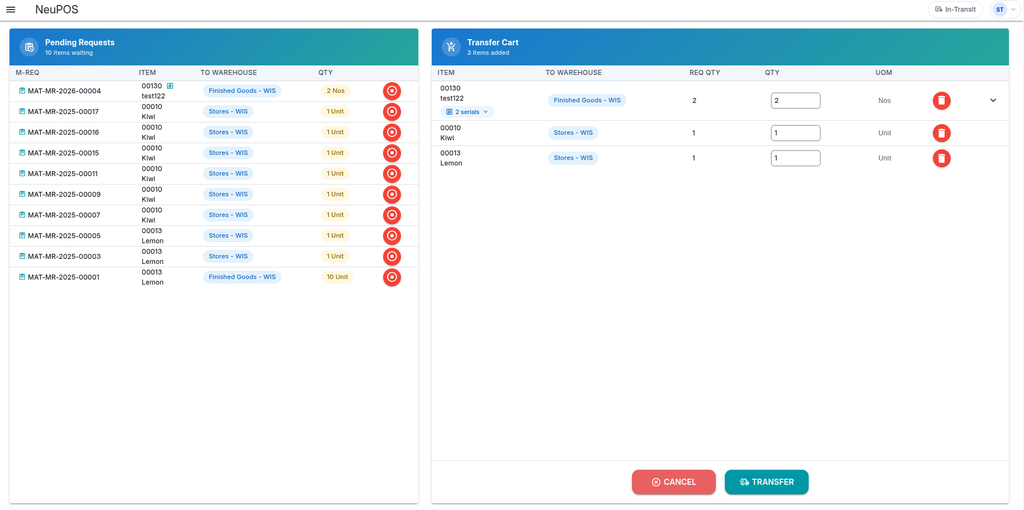
- Open the Transfer section from the sidebar.
- You’ll see a list of incoming requests from other warehouses.
- Select the items you want to transfer on the left panel.
- Adjust the quantities to match what you can provide.
- Click Transfer.
This will send the items to the requesting warehouse.
Receiving Stock at the Requested Warehouse
Back at the warehouse that requested the items:
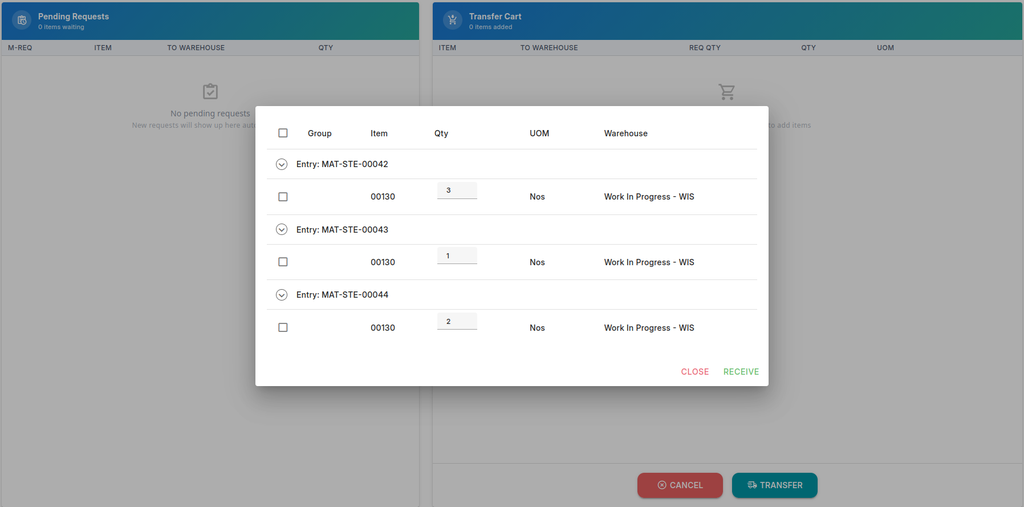
- Open Sidebar > Transfer.
- Click the View in Transit button in the navbar.
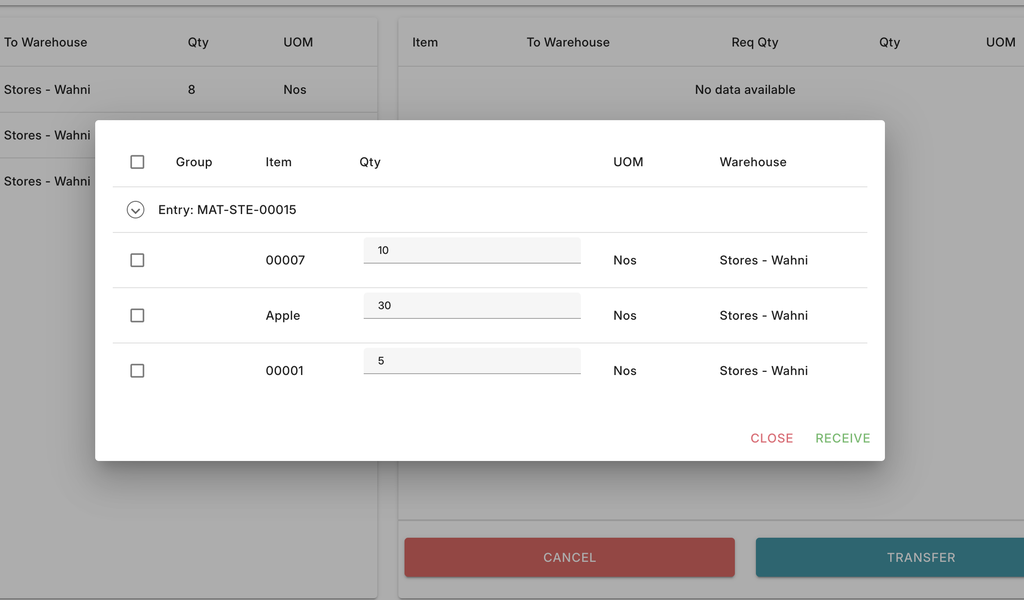
- You’ll see a modal with the list of incoming items and quantities.
- Adjust the quantities if there was any loss or damage during transit.
- Select the items you want to receive into your warehouse.
- Click Receive.
This will update your warehouse stock with the received quantities.
Verifying Stock Updates
After receiving items:
- Go to Sidebar > Stock.
- Check the stock levels to confirm that:
- The requested warehouse received the correct quantities.
- The source warehouse’s stock was adjusted accordingly.