Dashboard
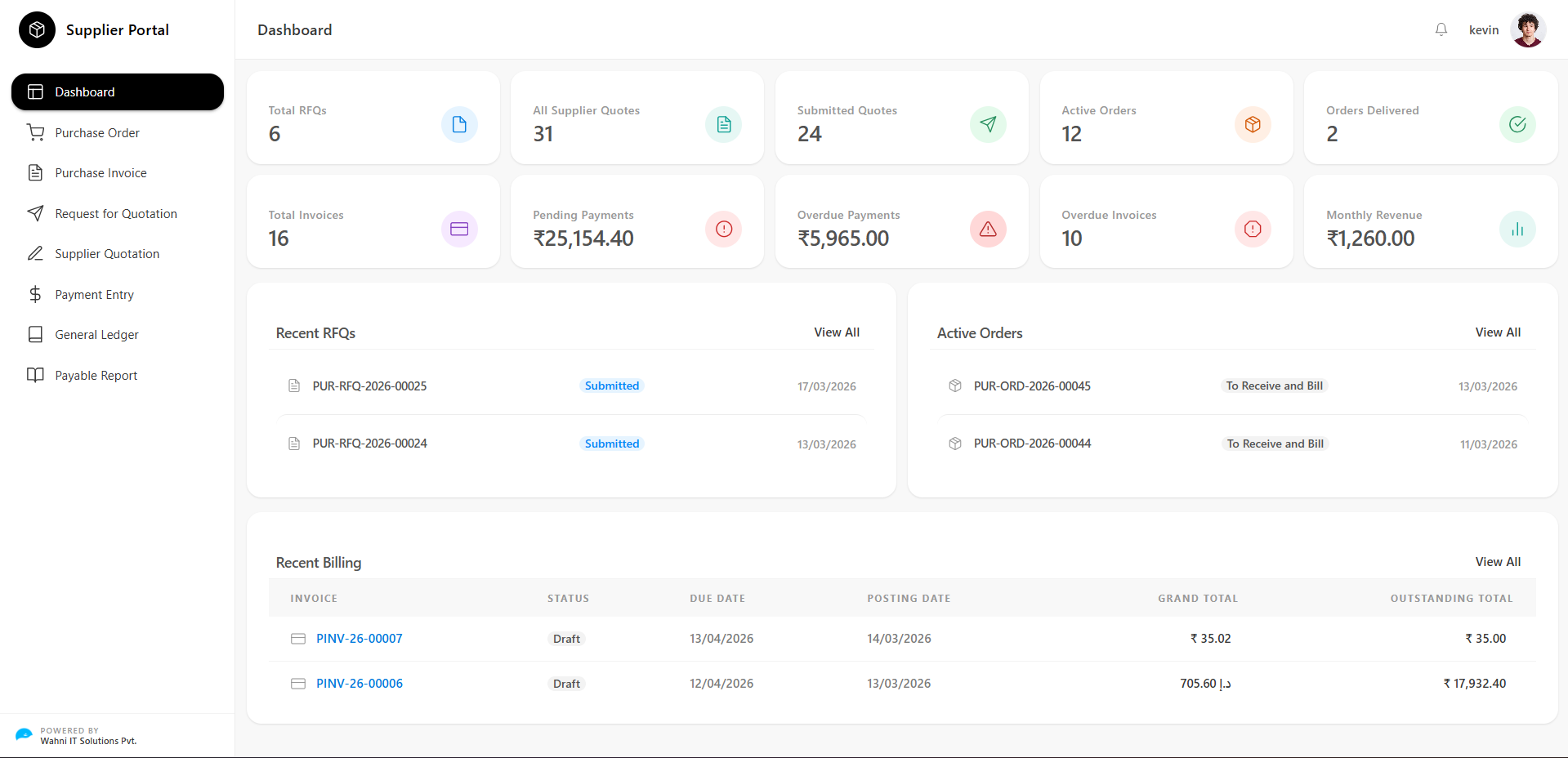
Dashboard Overview
The Supplier Dashboard is the central interface that provides a complete overview of supplier activities, including RFQs, quotations, orders, invoices, and payment status.
It helps suppliers quickly monitor their business performance and recent activities in one place.
Key Metrics
At the top of the dashboard, summary cards display important business data:
- Total RFQs Shows the total number of Requests for Quotation received.
- All Supplier Quotes Displays the total number of quotations created by the supplier.
- Submitted Quotes Indicates how many quotations have been submitted successfully.
- Active Orders Shows the number of currently active orders being processed.
- Orders Delivered Displays the number of completed/delivered orders.
- Total Invoices Total number of invoices generated.
- Pending Payments Displays the total amount yet to be received.
- Overdue Payments Highlights payments that have crossed the due date.
- Overdue Invoices Number of invoices that are past their due date.
- Monthly Revenue Shows the total revenue generated for the current month.
Recent RFQs
This section displays the latest RFQs received.
- Shows RFQ ID
- Displays status (e.g., Submitted)
- Shows date of RFQ
Purpose
- Quickly track new quotation requests
- Take action without navigating to another page
Active Orders
Displays currently active orders.
- Order ID
- Status (e.g., To Receive and Bill)
- Order date
Purpose
- Monitor ongoing orders
- Track fulfillment progress
Recent Billing
This section shows the latest invoice details.
Information Displayed
- Invoice Number
- Status (e.g., Draft)
- Due Date
- Posting Date
- Grand Total
- Outstanding Amount
Navigation Menu
The left-side menu provides access to all modules:
- Dashboard → Overview of activities
- Purchase Order → Manage orders
- Purchase Invoice → View and manage invoices
- Request for Quotation (RFQ) → View RFQs
- Supplier Quotation → Submit quotations
- Payment Entry → Manage payments
- General Ledger → Financial records
- Payable Report → Payment reports
User Profile & Notifications
- Top-right section displays the logged-in user
- Notification icon for alerts and updates