Supplier Registration Admin
The Supplier Registration module enables controlled onboarding of suppliers through a structured approval workflow, ensuring compliance and data accuracy before activation.
Registration Submission
- Supplier fills out the Registration Form
- Clicks Submit
- The submitted data is saved in the system with Draft status
Supplier Registration List (Admin View)
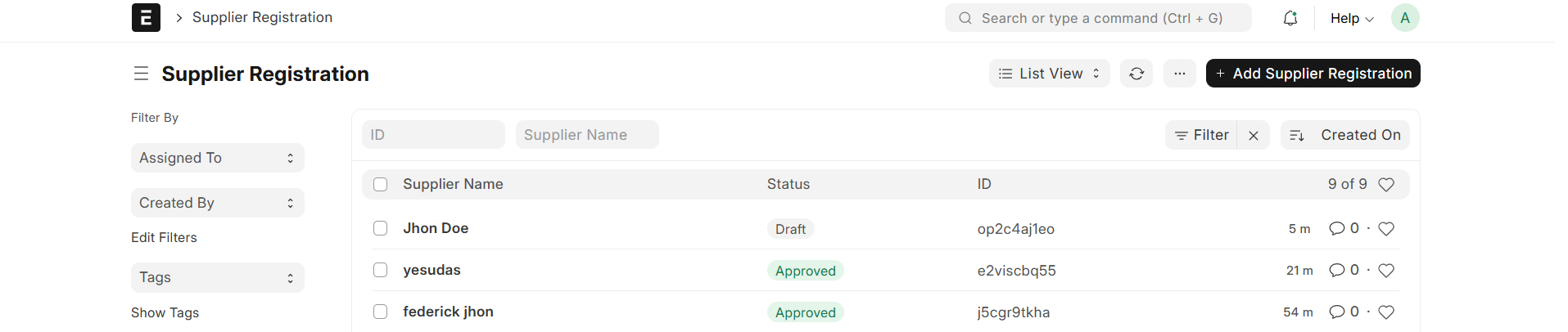
All submitted registrations are displayed in the
Supplier Registration List
in a tabular format.
List View Columns
- Supplier Name → Name of the registered supplier
- Status → Current state (e.g., Draft, Approved)
- ID → Unique system-generated identifier
Filtering and Search
Admins can find records using:
- Search Bar → Search by Supplier Name or ID
- Filter Options:
- Assigned To
- Created By
- Tags
- Created On
Admin Capabilities
- View supplier details
- Verify submitted information
- Review attachments
- Track approval status
Registration Details
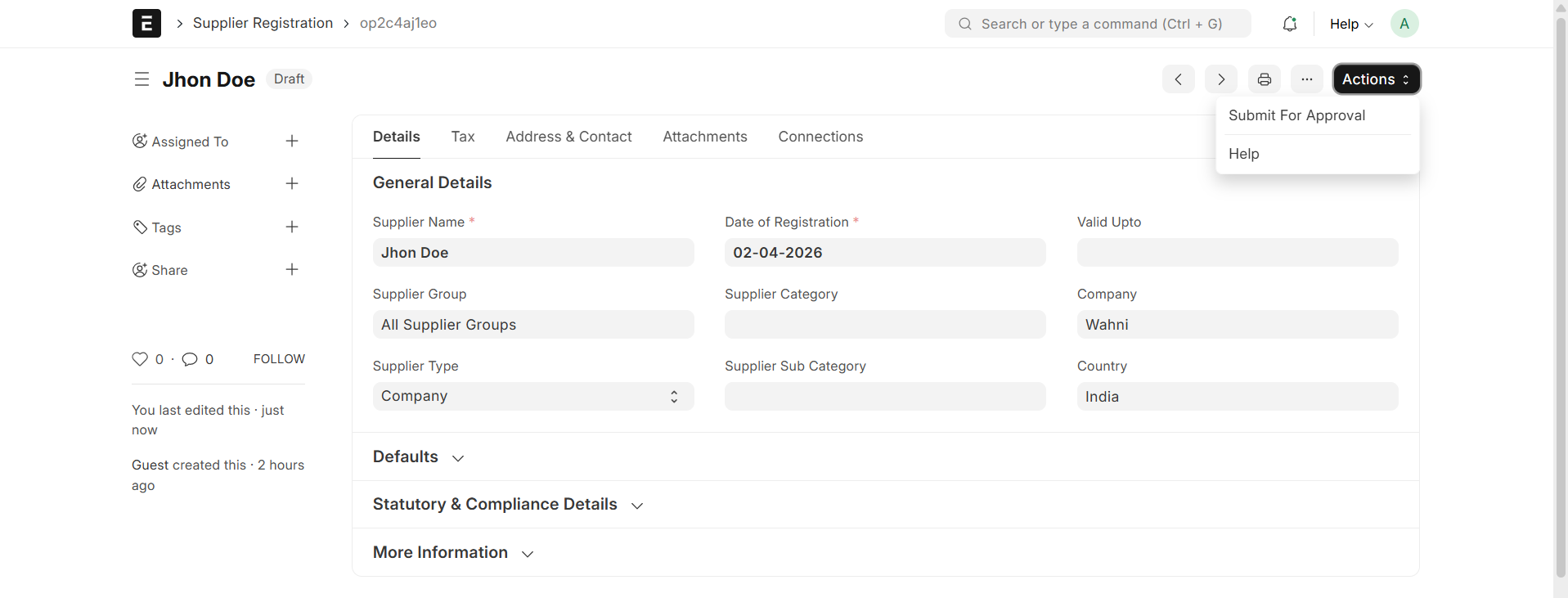
Clicking a supplier record opens a detailed view with multiple tabs:
General Details
Contains core supplier information:
- Supplier Name
- Date of Registration
- Valid Upto
- Supplier Group
- Supplier Category / Sub Category
- Company
- Supplier Type (Individual / Company)
- Country
Address & Contact
- Supplier address details
- Contact information
Tax
- Tax-related details (if applicable)
Attachments
- Upload and manage required documents
Attachment Fields:
- Document Name → Name of the document
- Attachment → File upload
- Valid Upto → Expiry date of document
Connections
- Displays linked or related documents (if any)
Actions
Available at the top-right:
- Submit For Approval → Sends the registration for approval
- Help → Opens help/support
Approval Workflow
The supplier registration follows a multi-stage approval process:
1. Purchase Approval
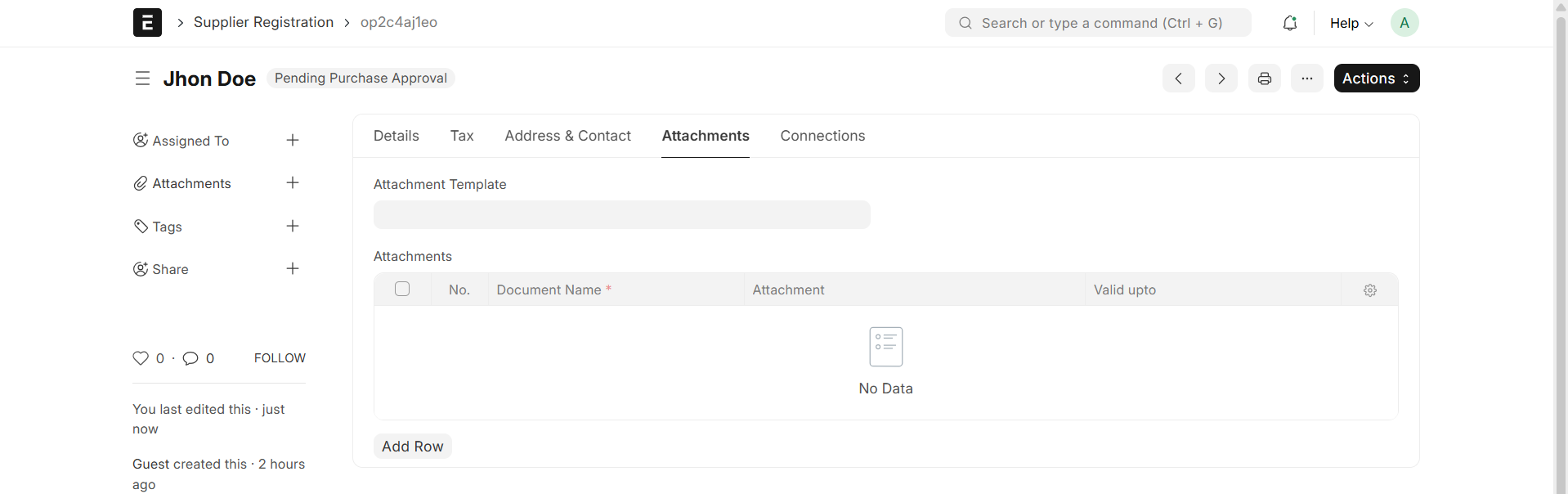
- Ensures supplier is suitable for procurement
Decision:
- Approve → Moves to Supplier Creation
- Reject → Registration is closed
2. Supplier Creation
- After approval, admin creates the Supplier Master Record
Outcome:
- Supplier is officially created in the system
3. Financial Approval
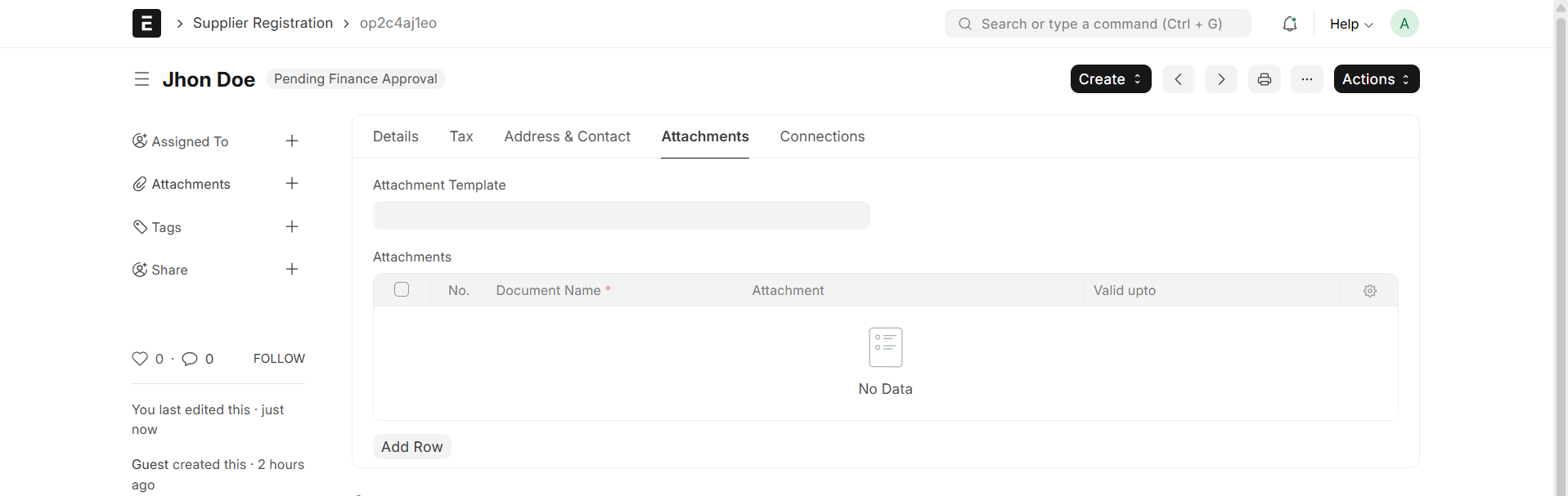
Verifications:
- Payment Terms
- Credit Limits
- Financial Compliance
Decision:
- Approve → Moves to User Activation
- Reject → Supplier remains Inactive
4. User Activation (Important Step)
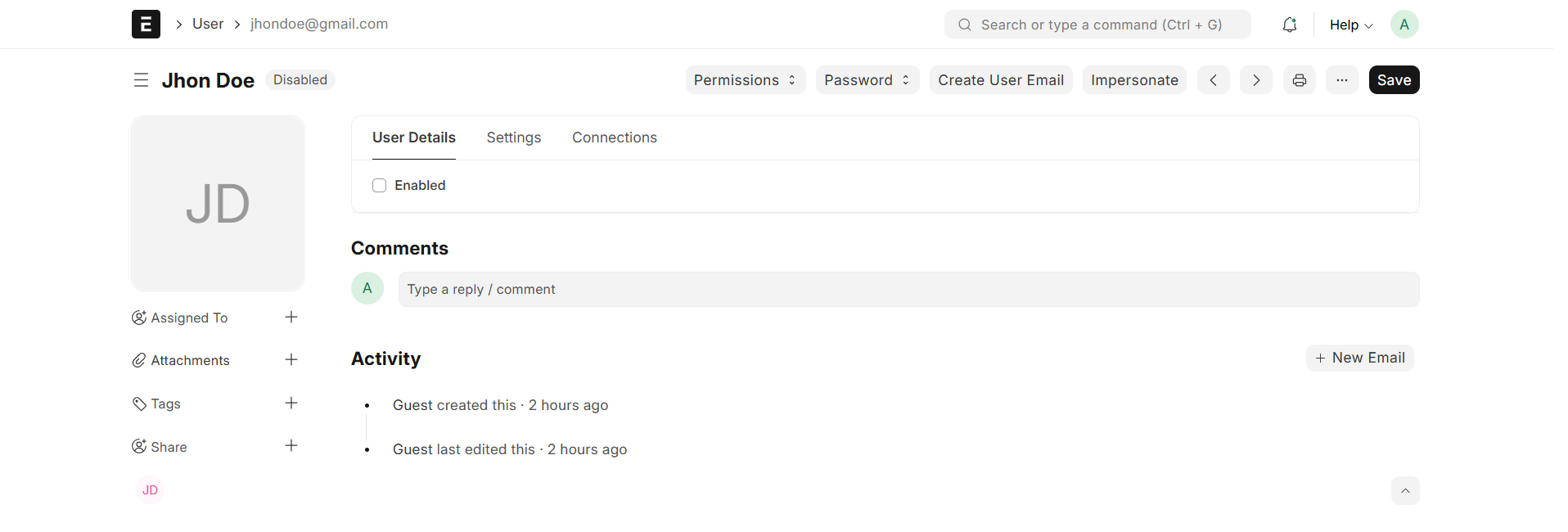
After financial approval, the supplier user must be enabled manually:
- Navigate to the User List
- Open the corresponding supplier user record
- Enable the user account
- Save the changes
Outcome:
- Supplier can now log in to the Supplier Portal
- Supplier can start using the system (view orders, dispatch, raise concerns, etc.)
Status Indicators
- Draft → Initial saved state
- Submitted → Sent for approval
- Approved → Approved but user not yet enabled
- Active → Fully approved and user enabled
- Rejected → Declined
Final Status
Active Supplier
- Can log in to the Supplier Portal
- Can receive Purchase Orders
- Can perform operations like Supplier Quotation and Concern
Inactive Supplier
- Cannot access the system until user is enabled
Purpose
- Ensure proper validation before supplier onboarding
- Maintain procurement and financial compliance
- Control user access through manual activation
- Reduce risk in supplier management
- Enable structured and secure supplier onboarding