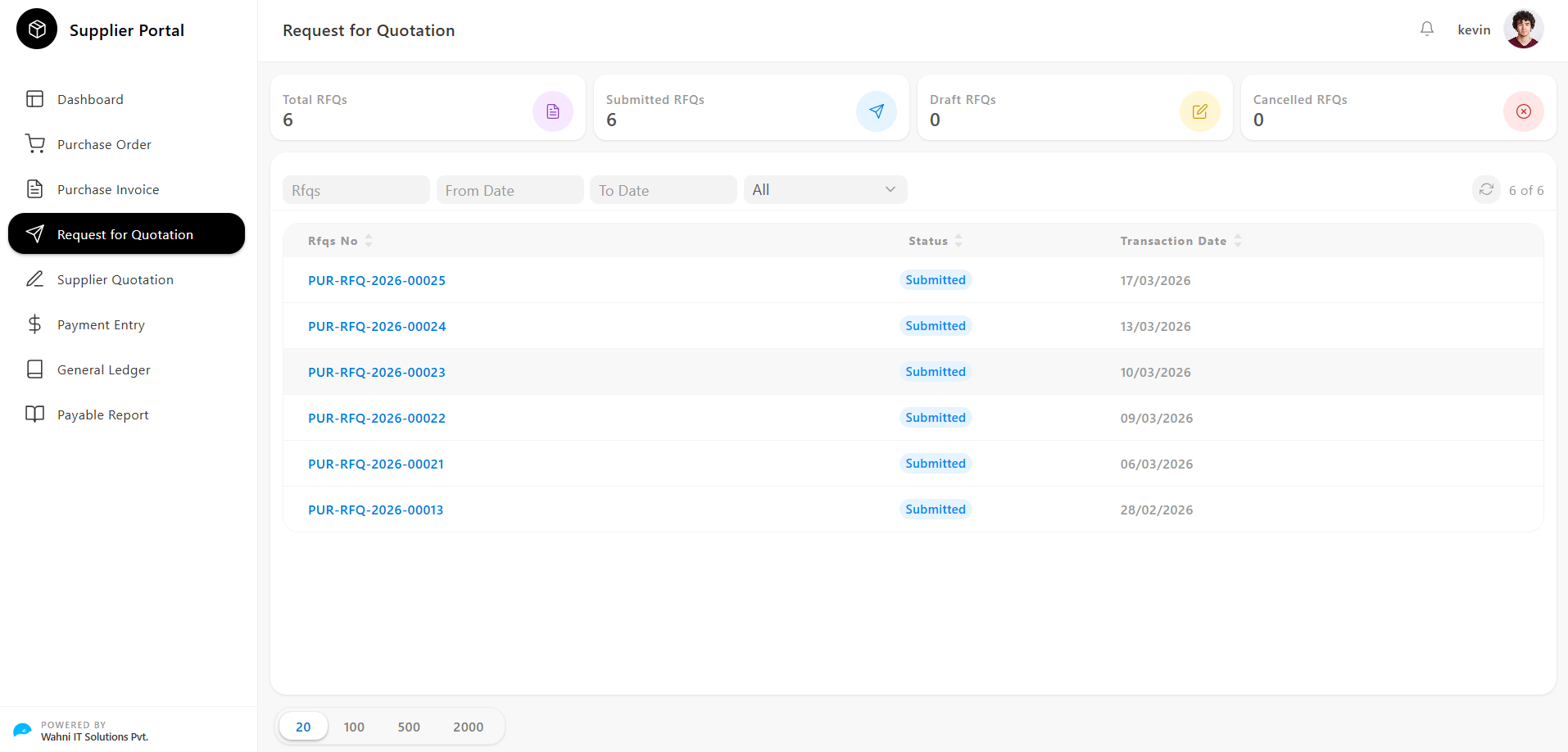
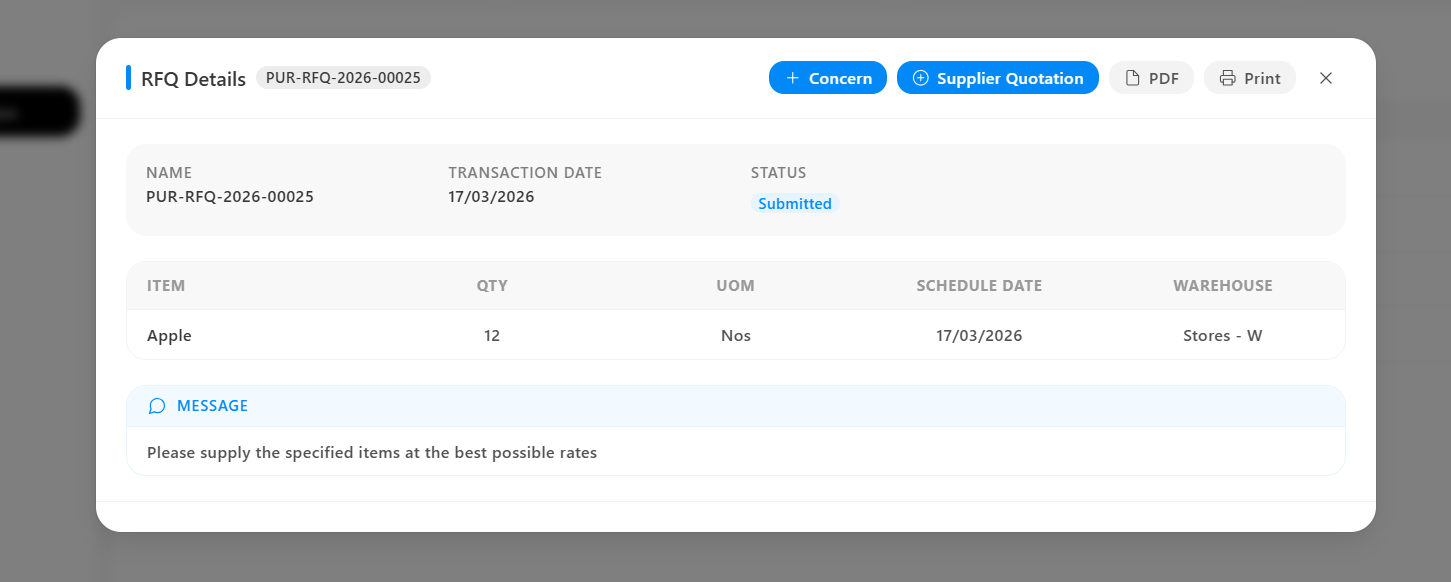
Purchase Invoice
The Purchase Invoice module allows suppliers to view, manage, and track all purchase invoices raised against them through the Supplier Portal.
It provides a complete overview of invoice statuses, item details, addresses, transport information, payment terms, and linked documents — all in one place.
Purchase Invoice Overview
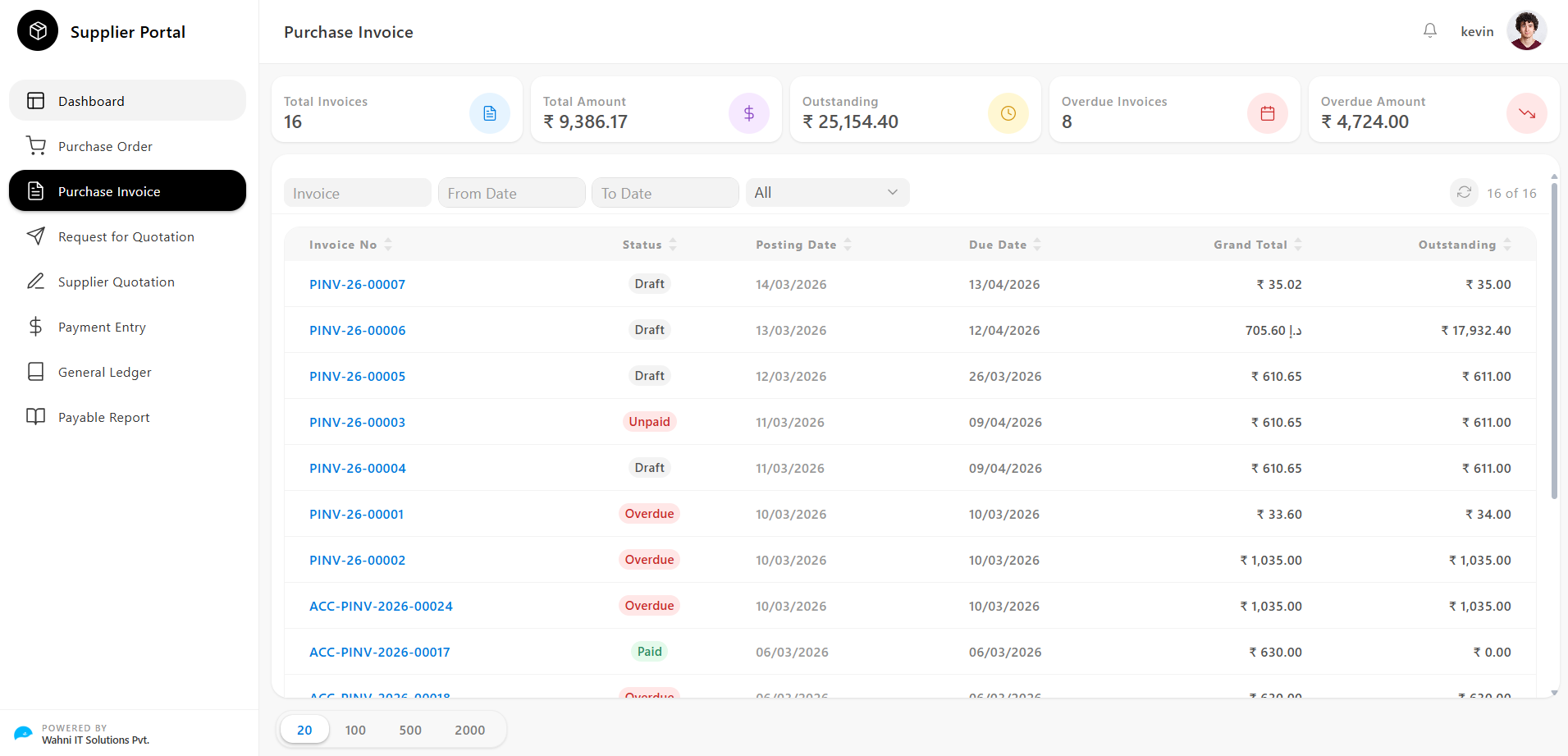
The Purchase Invoice page gives suppliers a real-time summary of all invoices along with tools to search and filter them efficiently.
Key Metrics
At the top of the page, summary cards display important invoice data:
- Total Invoices Shows the total number of purchase invoices issued to the supplier
- Total Amount Displays the combined grand total value of all purchase invoices
- Outstanding Indicates the total value of invoices that are yet to be paid
- Overdue Invoices Shows the count of invoices that have passed their due date
- Overdue Amount Displays the total value of all overdue invoices
Filtering and Searching Invoices
Suppliers can narrow down the invoice list using the following filters:
- Invoice → Search by specific Purchase Invoice number
- From Date → Filter invoices from a selected start date
- To Date → Filter invoices up to a selected end date
- Status Filter → Filter invoices by status:
- All
- Draft
- Unpaid
- Overdue
- Paid
Invoice List
The purchase invoices are displayed in a table format with the following columns:
- Invoice No Unique identifier
- Status
Current state of the invoice:
- Draft
- Unpaid
- Overdue
- Paid
- Posting Date Date when the invoice was created
- Due Date Payment deadline for the invoice
- Grand Total Total invoice value including taxes and charges
- Outstanding Remaining unpaid amount
Pagination
Suppliers can control the number of visible records:
- 20 / 100 / 500 / 2000 records per page
Invoice Details
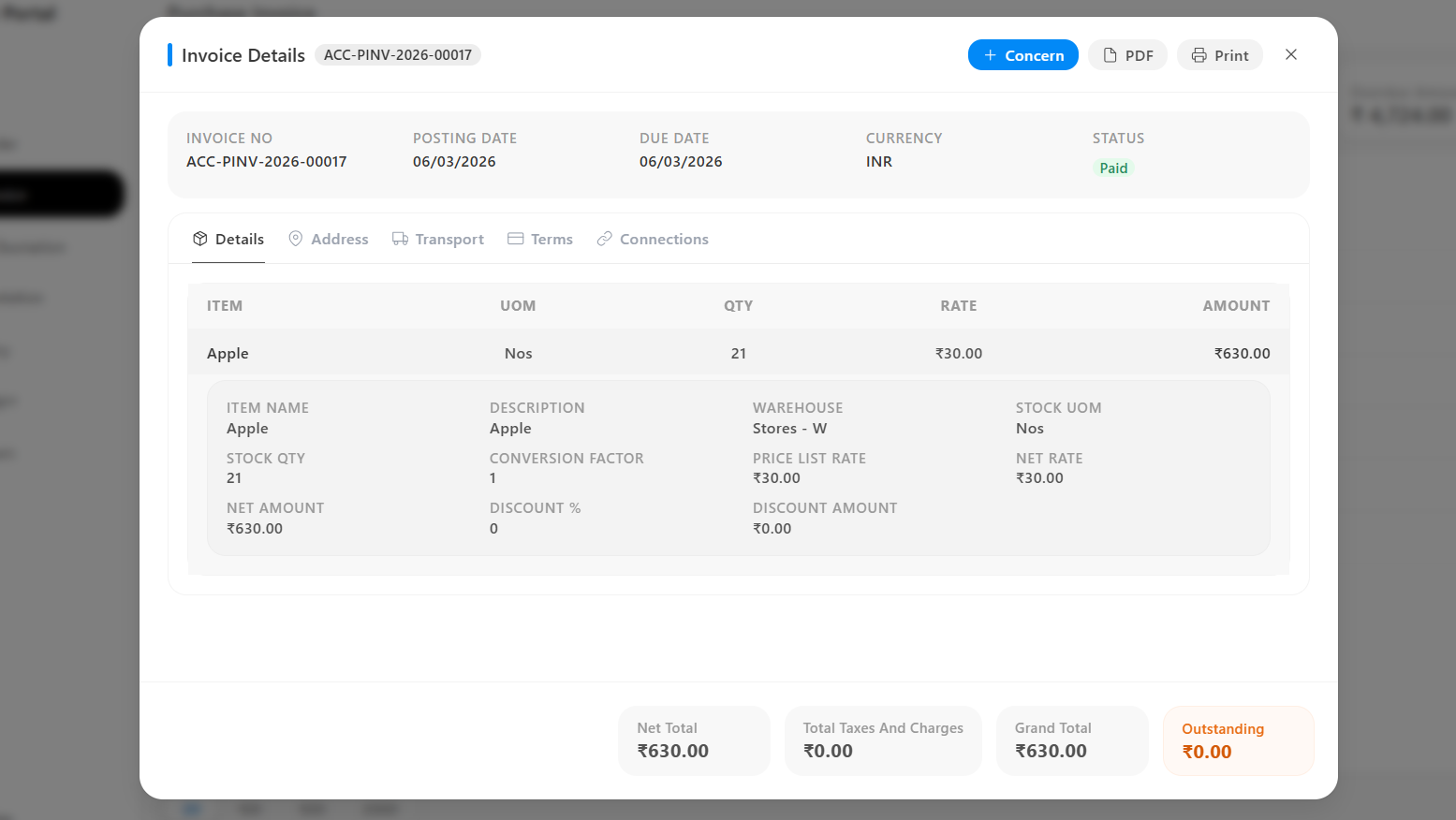
Clicking on any Invoice opens the Invoice Details modal.
This modal provides a complete breakdown of the purchase invoice across five tabs:
- Details
- Address
- Transport
- Terms
- Connections
Invoice Header
Displays summary-level information:
- Invoice No → Unique reference number
- Posting Date → Invoice creation date
- Due Date → Payment deadline
- Currency → Currency used (e.g., INR)
- Status → Current invoice status
Details Tab
The default tab showing item-level and totals information.
Item Details
Each item includes:
- Item Name
- UOM (Unit of Measurement)
- Quantity
- Rate
- Amount
Expanded Item Information
- Item Name
- Description
- Warehouse
- Stock UOM
- Stock Quantity
- Conversion Factor
- Price List Rate
- Net Rate
- Net Amount
- Discount %
- Discount Amount
Summary Values
- Net Total → Sum of all item values before tax
- Total Taxes and Charges → Total tax applied
- Grand Total → Final payable amount
- Outstanding → Remaining unpaid balance
Address Tab
Displays all addresses related to the invoice:
- Supplier Address
- Company Billing Address
- Dispatch Address
- Shipping Address
All fields are read-only.
Transport Tab
Displays shipment and logistics details:
- Transport Receipt No → Receipt number from transporter
- Vehicle No → Vehicle used for delivery
- Transporter Name → Name of logistics provider
- Distance → Delivery distance
Driver Details
- Driver Name
- Driver License
- Driver Phone
Terms Tab
Contains payment conditions and instructions:
- Payment Terms
- Payment Terms Template
- Payment Schedule
- Terms and Conditions
- Notes / Instructions
Connections Tab
Displays linked documents:
- Purchase Order
- Payment Entry
Purpose
- Verify originating purchase order
- Track payments
- Maintain audit trail
Action Buttons
Located at the top-right of the modal:
- Concern
Concern
Used to raise issues related to the invoice.
How to Raise a Concern
- Click Concern
- Enter subject and description
- Submit
Concern Details Page
- Concern ID
- Subject
- Description
- Status (Open / In Progress / Resolved)
- Raised By
- Date
- Response
Purpose
- Report invoice issues or disputes
- Maintain communication
- Track resolution status
PDF and Print
- PDF → Download invoice document
- Print → Print directly