Request For Quotation
The Request for Quotation (RFQ) module allows suppliers to view and manage all RFQs raised against them through the Supplier Portal.
It provides a complete overview of RFQ statuses, item requirements, buyer messages, and the ability to respond by creating a Supplier Quotation — all in one place.
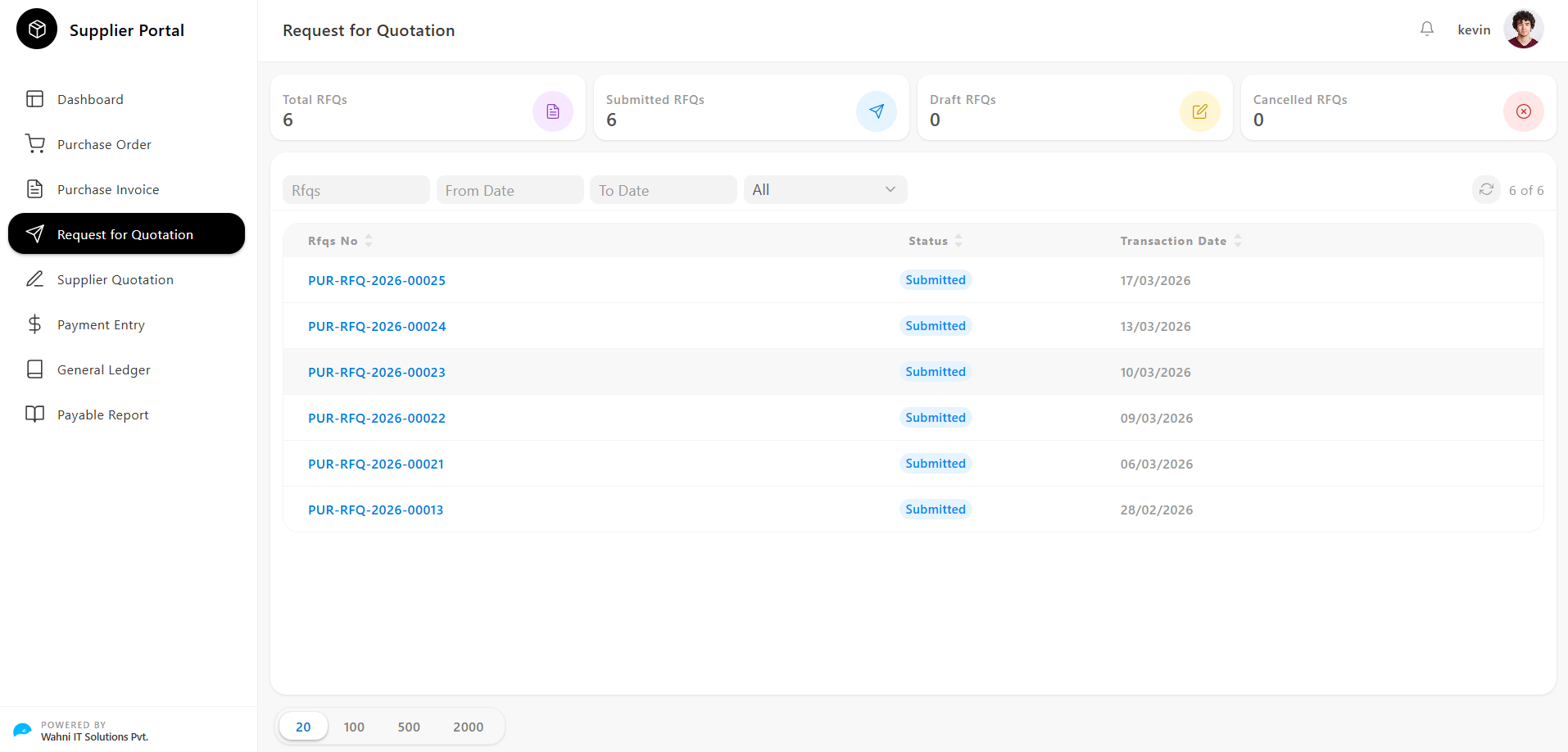
Request for Quotation Overview
The Request for Quotation page gives suppliers a real-time summary of all RFQs along with tools to search and filter them efficiently.
Key Metrics
At the top of the page, summary cards display important RFQ data:
- Total RFQs Shows the total number of RFQs issued to the supplier
- Submitted RFQs Displays the count of RFQs that have been submitted by the buyer
- Draft RFQs Shows the number of RFQs still in draft state
- Cancelled RFQs Displays the number of RFQs that have been cancelled
Filtering and Searching RFQs
Suppliers can narrow down the RFQ list using the following filters:
- RFQs → Search by specific RFQ number
- From Date → Filter RFQs from a selected start date
- To Date → Filter RFQs up to a selected end date
- Status Filter → Filter RFQs by status:
- All
- Submitted
- Cancelled
RFQ List
The RFQs are displayed in a table format with the following columns:
- RFQ No Unique identifier
- Status
Current state of the RFQ:
- Submitted
- Draft
- Cancelled
- Transaction Date Date when the RFQ was created
Pagination
Suppliers can control the number of visible records:
- 20 / 100 / 500 / 2000 records per page
RFQ Details
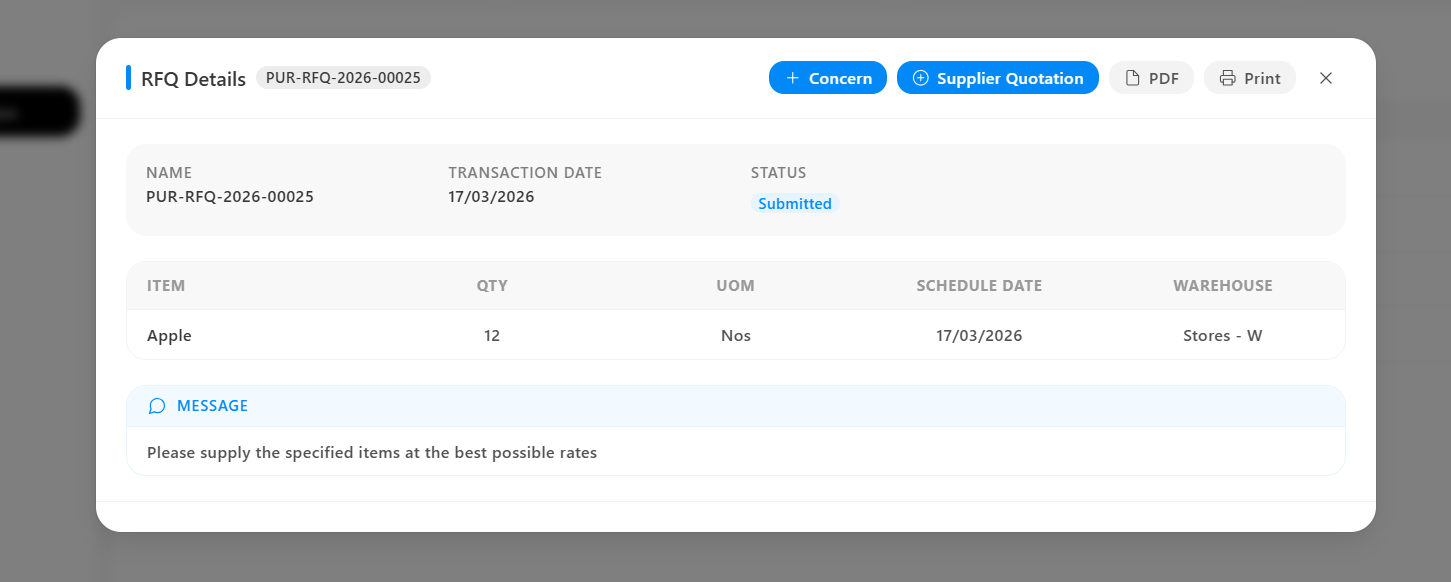
Clicking on any RFQ opens the RFQ Details modal.
This modal provides a complete breakdown of the Request for Quotation including item requirements and buyer instructions.
RFQ Header
Displays summary-level information:
- Name → Unique RFQ reference number
- Transaction Date → RFQ creation date
- Status → Current RFQ status
Item Details
The requested items are displayed with the following details:
- Item
- Quantity
- UOM (Unit of Measurement)
- Schedule Date
- Warehouse
Message
A message section is displayed below the item list:
- Contains instructions or notes from the buyer
- Example: “Please supply the specified items at the best possible rates”
This section is read-only and provided for supplier reference.
Action Buttons
Located at the top-right of the RFQ Details modal:
- Concern
- Supplier Quotation
Concern
Used to raise issues or queries related to the RFQ.
How to Raise a Concern
- Click Concern
- Enter subject and description
- Submit
Concern Details Page
- Concern ID
- Subject
- Description
- Status (Open / In Progress / Resolved)
- Raised By
- Date
- Response
Purpose
- Report RFQ discrepancies
- Request clarification from buyer
- Track issue resolution
Supplier Quotation
Used to respond to the RFQ by submitting a quotation.
How to Create a Supplier Quotation
- Click Supplier Quotation
- Navigate to the quotation creation page
- Enter pricing and terms
- Submit the quotation
→ Refer to the Supplier Quotation section for detailed steps.
Purpose
- Respond to RFQs
- Submit item pricing and availability
- Initiate procurement workflow
PDF and Print
- PDF → Download RFQ document
- Print → Print directly