Payment Entry
The Payment Entry module allows the admin to record payments made to suppliers or received from customers. It is commonly created from a Purchase Invoice to settle outstanding amounts and maintain accurate financial records.
Payment Entry Creation
- Payment Entries can be created:
- From a Purchase Invoice
- Manually by the Admin
- To create from Purchase Invoice:
- Open Purchase Invoice
- Click Create → Payment
Document Workflow
- After entering all required details, click Save
Draft Stage
- Once saved, the Payment Entry will be in Draft status
- In this stage:
- Payment details can be edited
- Amount allocation can be modified
- References can be updated
Submit Action
- After verification, click the Submit button
After Submission
- The Payment Entry status changes to Submitted
- The document becomes read-only
- Accounting entries are automatically created
- The outstanding amount is reduced
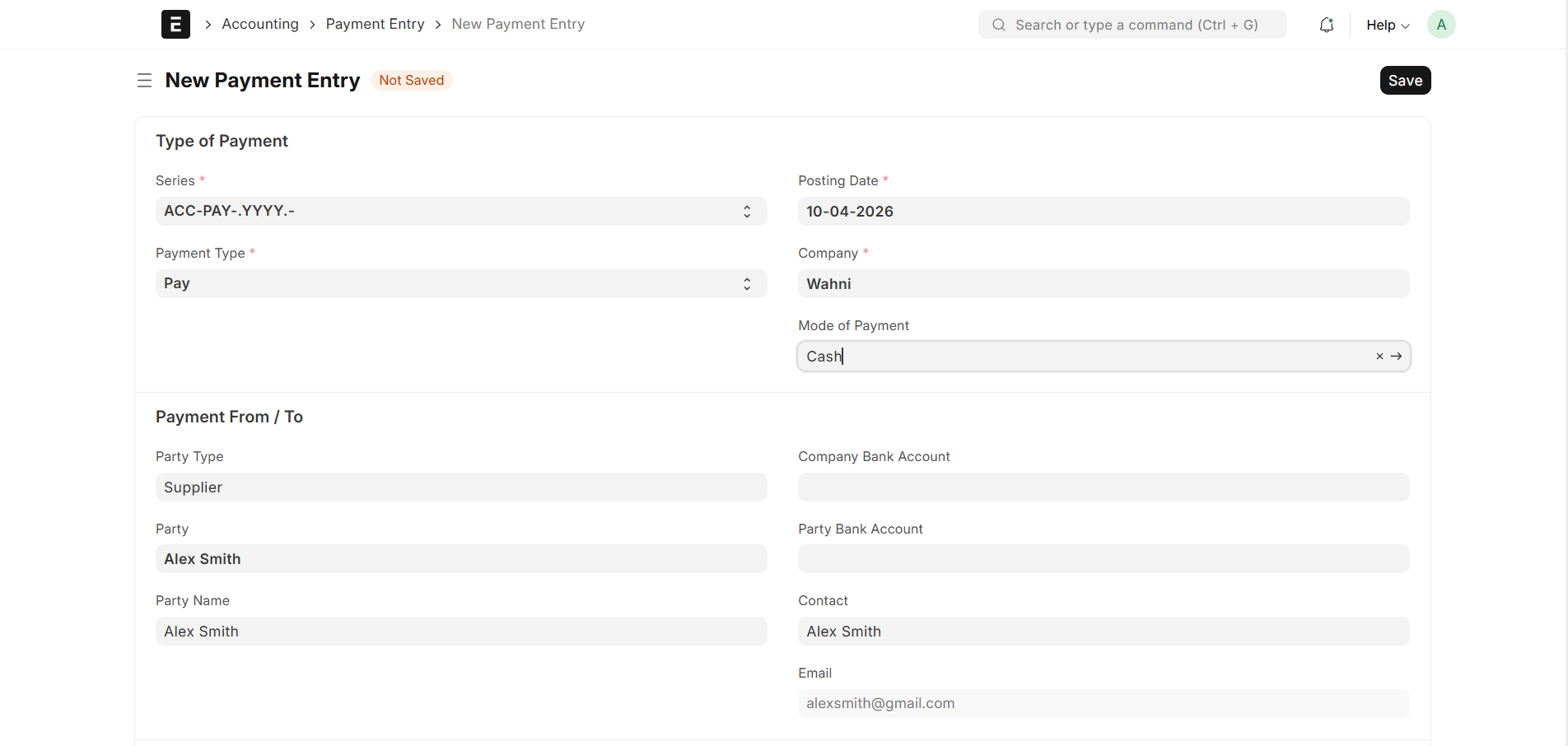
Basic Details
Each Payment Entry contains the following key details:
- Payment Entry ID → Unique identifier
- Payment Type → Pay / Receive
- Posting Date → Payment date
- Company → Organization making the payment
- Mode of Payment → Cash / Bank / Cheque
Party Details
The Payment Entry includes:
- Party Type → Supplier / Customer
- Party → Selected party (e.g., Alex Smith)
- Party Name → Auto-filled name
- Contact → Contact person
- Email → Email address
Accounts Section
- Company Bank Account → Account from which payment is made
- Party Bank Account → Supplier’s bank details
Amount Section
- Paid Amount → Total amount being paid
Payment References
This section links the payment to invoices:
- Reference Type → Document type (e.g., Purchase Invoice)
- Reference Name → Invoice ID
- Grand Total → Total invoice amount
- Outstanding Amount → Pending amount
- Allocated Amount → Amount paid for this invoice
Summary
- Total Allocated Amount → Total assigned to invoices
- Unallocated Amount → Remaining unused amount
- Difference Amount → Must be zero before submission
Multiple Payment Methods
- A single invoice can be paid using multiple payment methods
Example:
- Invoice Amount → ₹3000
- ₹1500 paid via Cash
- ₹1500 paid via Cheque
This can be done by creating separate Payment Entries or adjusting allocations based on payment modes.
Taxes and Charges
- Additional taxes (if applicable) can be added
- Total Taxes and Charges → Total extra charges applied
Reference Details
- Transaction ID / Reference No → Cheque or transaction number
- Reference Date → Payment reference date
Payment Entry Status Flow
- Draft → Payment saved but not submitted
- Submitted → Payment confirmed and posted
- Cancelled → Payment entry cancelled
Purpose
- Record payments to suppliers
- Settle Purchase Invoices
- Track outstanding and paid amounts
- Maintain accurate accounting records
Summary
The Payment Entry module helps Admin:
- Manage supplier payments
- Allocate payments to invoices
- Support multiple payment methods
- Maintain financial accuracy and tracking