Purchase Order Admin
The Purchase Order (PO) module allows the admin to officially place an order with a selected supplier. It is created based on approved Supplier Quotations and confirms the purchase of items with agreed pricing, taxes, and delivery terms.
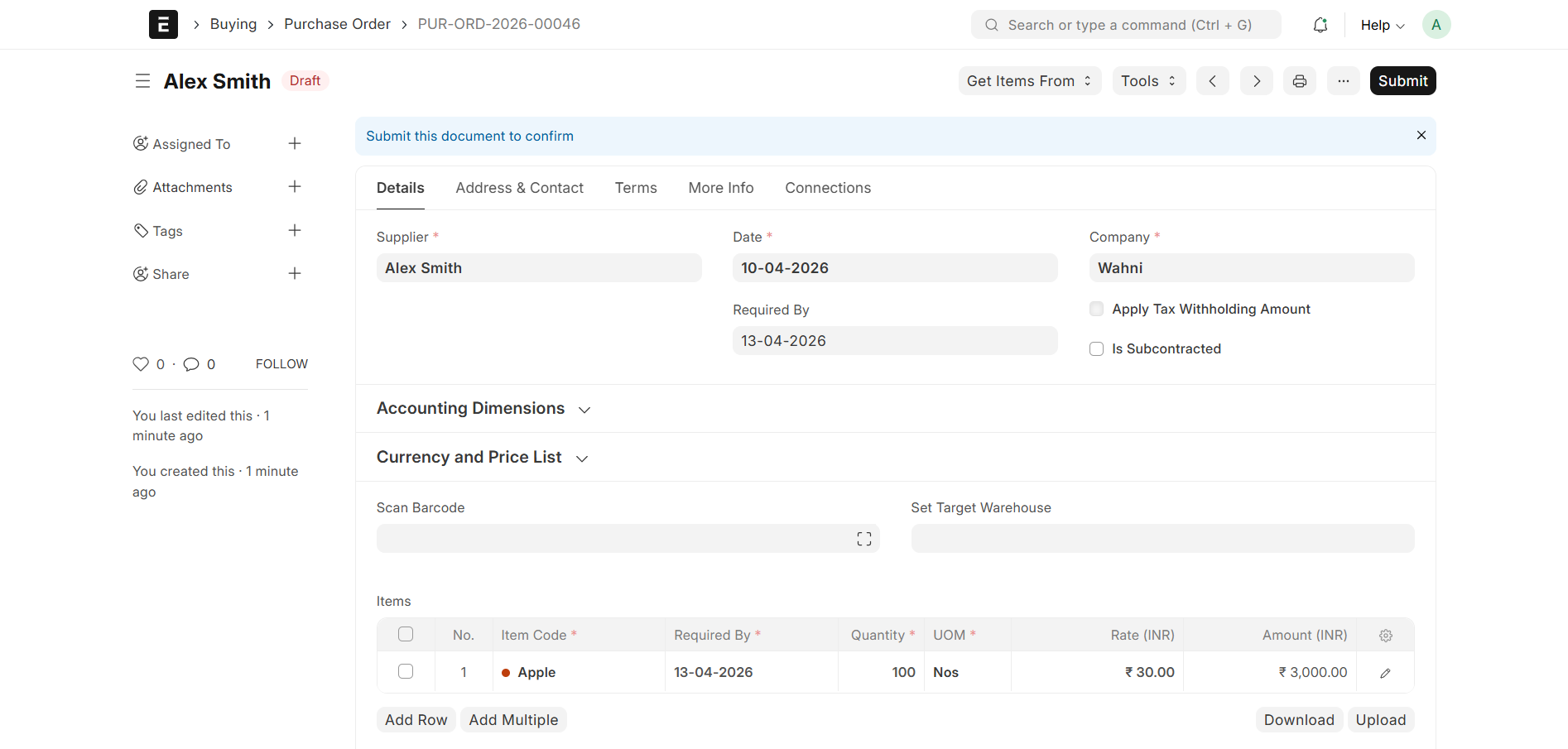
Purchase Order Creation
- Purchase Orders can be created:
- From an accepted Supplier Quotation
- Manually by the Admin
- To create from quotation:
- Open Supplier Quotation
- Click Create → Purchase Order
Document Workflow
- After entering all required details, click Save
Draft Stage
- Once saved, the Purchase Order will be in Draft status
- In this stage:
- Data can be edited
- Items and pricing can be modified
- Taxes and addresses can be updated
Submit Action
- After verification, click the Submit button
After Submission
- The Purchase Order status changes to Submitted
- The document becomes read-only
- It is now considered a confirmed order
- The supplier can be notified (Email / Portal)
Basic Details
Each Purchase Order contains the following key details:
- PO ID → Unique identifier
- Supplier → Selected supplier (e.g., Alex Smith)
- Transaction Date → Date of PO creation
- Required By → Expected delivery date
- Company → Organization placing the order
Items Section
The Items table includes:
- Item Code → Name of the product
- Required By → Delivery date per item
- Quantity → Ordered quantity
- UOM → Unit of Measure (e.g., Nos)
- Rate → Price per unit
- Amount → Total price per item
Taxes and Charges
The Purchase Order supports tax configuration:
- Tax Category → Applicable tax group
- Taxes and Charges Template → Predefined tax template
- Shipping Rule → Delivery charges (if applicable)
- Incoterm → Shipping terms
Tax Breakdown
Each tax row includes:
- Type → Calculation method (e.g., On Net Total)
- Account Head → Tax account
- Tax Rate → Percentage
- Amount → Calculated tax value
Summary
- Total Taxes and Charges → Total tax amount
- Grand Total → Final payable amount
Address & Contact
The Address section includes:
- Supplier Address → Supplier’s registered address
- Company Billing Address → Billing details of the company
- Shipping Address → Delivery location for items
This ensures proper communication and delivery handling.
Totals Section
- Grand Total → Final order value
- Rounded Total → Rounded amount (if enabled)
- Rounding Adjustment → Adjustment value
- Advance Paid → Any advance payment made
Purchase Order Status Flow
- Draft → PO saved but not submitted
- Submitted → PO confirmed and sent to supplier
- To Receive and Bill → Waiting for delivery and invoice
- Completed → Fully received and billed
- Cancelled → PO cancelled
Purpose
- Confirm purchase with supplier
- Define pricing, taxes, and delivery terms
- Enable tracking of ordered items
- Support downstream processes like:
- Purchase Receipt
- Purchase Invoice
Summary
The Purchase Order module helps Admin:
- Convert quotations into confirmed orders
- Manage supplier transactions
- Track procurement lifecycle
- Ensure accurate financial and inventory records