Profile
The Profile module allows suppliers to view and manage their complete account information through the Supplier Portal.
It provides a centralized place to review supplier details, track billing and outstanding amounts, and manage all contacts and addresses — all in one place.
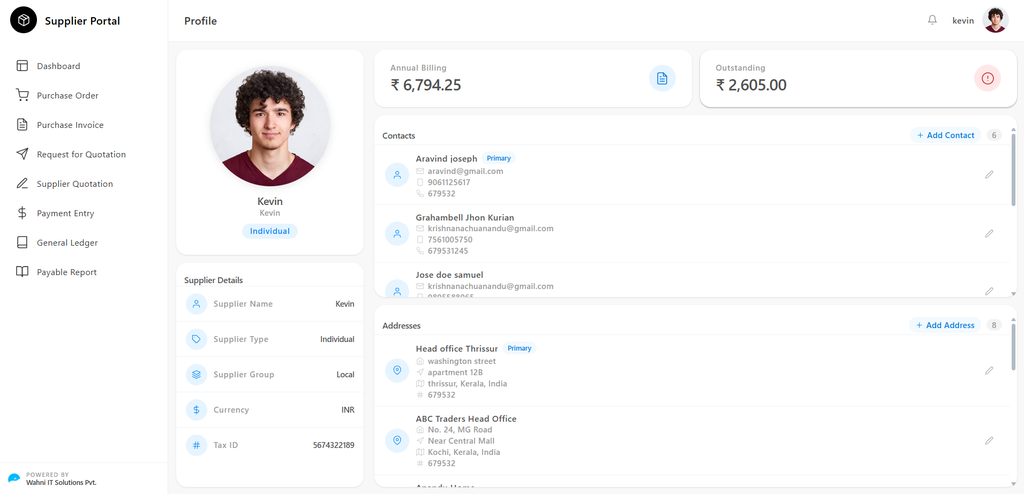
Profile Overview
The Profile page is divided into three main sections:
- Supplier Identity and Details
- Financial Summary
- Contacts and Addresses
Supplier Identity
Displayed on the left panel:
- Profile Photo Displays the supplier's profile picture
- Name Display name of the supplier
- Supplier Type Badge
Classification of the supplier:
- Individual
- Company
Supplier Details
Displayed below the profile section:
- Supplier Name Registered name of the supplier
- Supplier Type
- Individual
- Company
- Supplier Group Category of supplier (e.g., Local, International)
- Currency Default transaction currency (e.g., INR)
- Tax ID Supplier tax identification number
Financial Summary
Displayed on the right panel:
- Annual Billing Total invoice value for the current year
- Outstanding Total pending amount to be paid
Contacts
Displays all contact persons associated with the supplier.
Contact Information
Each contact includes:
- Contact Name
- Primary Badge (for main contact)
- Email Address
- Mobile Number
- Pincode
→ Each row includes an Edit (✏) option
Add Contact
- Click + Add Contact
- Enter:
- Contact Name
- Email Address
- Mobile Number
- Pincode
- Mark as Primary (optional)
- Click Save
Edit Contact
- Click Edit (✏)
- Modify required fields
- Click Save
Addresses
Displays all addresses linked to the supplier account.
Address Information
Each address includes:
- Address Title
- Primary Badge
- Address Line 1 (Street / Building)
- Address Line 2 (Area / Locality)
- City, State, Country
- Pincode
→ Each row includes an Edit (✏) option
Add Address
- Click + Add Address
- Enter:
- Address Title
- Address Line 1
- Address Line 2
- City
- State
- Country
- Pincode
- Mark as Primary (optional)
- Click Save
Edit Address
- Click Edit (✏)
- Modify required fields
- Click Save