Pos
NeuPOS is a powerful and user-friendly Point of Sale (POS) system built on ERPNext.
This guide walks you through every step — from starting your shift to closing it at the end of the day.
Selecting Company & POS Profile
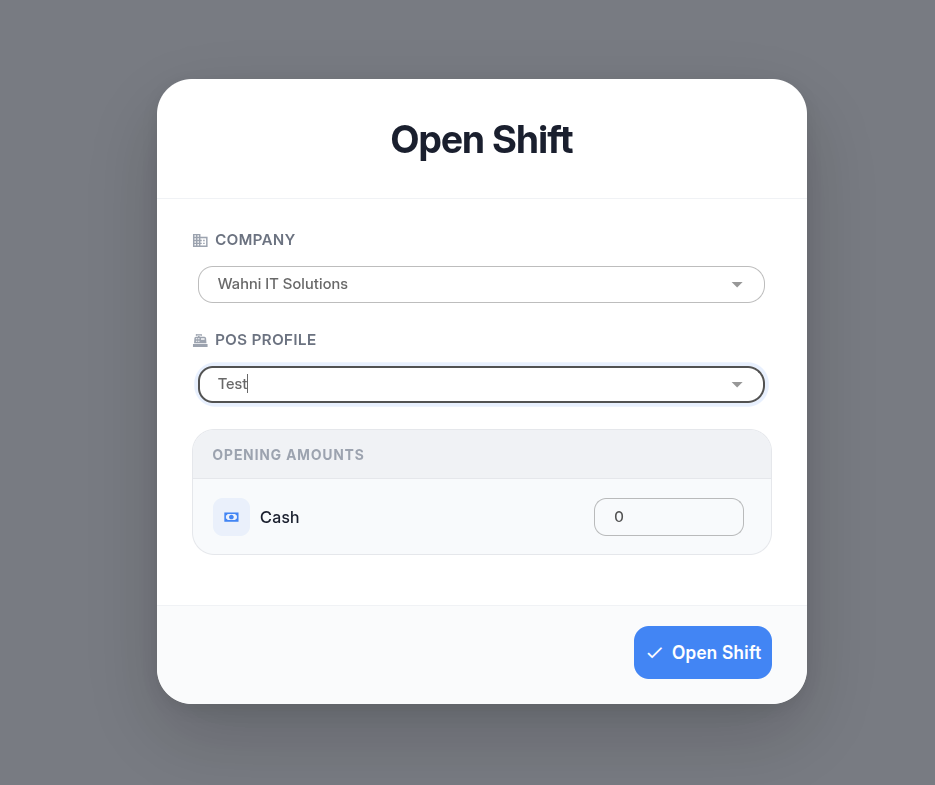
When you start NeuPOS, the first screen you’ll see is the Company Selection modal.
- Choose the Company you want to operate under.
- Select the POS Profile — this determines key settings such as the warehouse, pricing rules, and other billing preferences.
- Enter the Opening Amount, which is the starting cash in the drawer for the shift.
- This helps track sales and reconcile cash at the end of the day.
Once submitted, the counter interface will open.
The Counter Interface
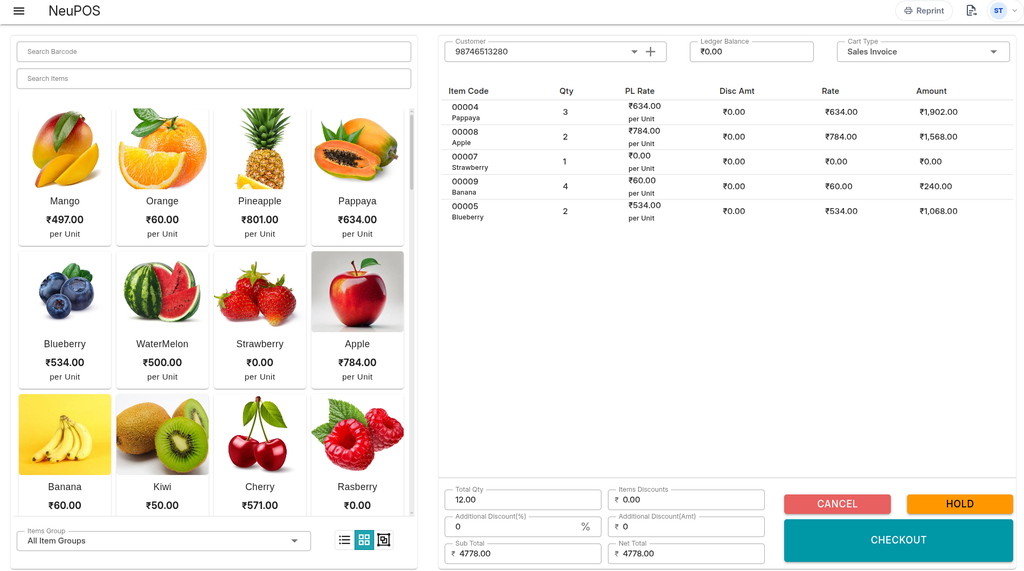
Here, you can see the list of available items and begin billing.
Key Features
- Search and add Items by name or scan barcodes.
- Click on an item to add it to the cart.
- Select a Customer for the transaction.
- Choose the Cart Type — Sales Invoice, Sales Order, or Sales Return.
- Filter by Item Groups, and toggle between List or Card view.
Cart Options
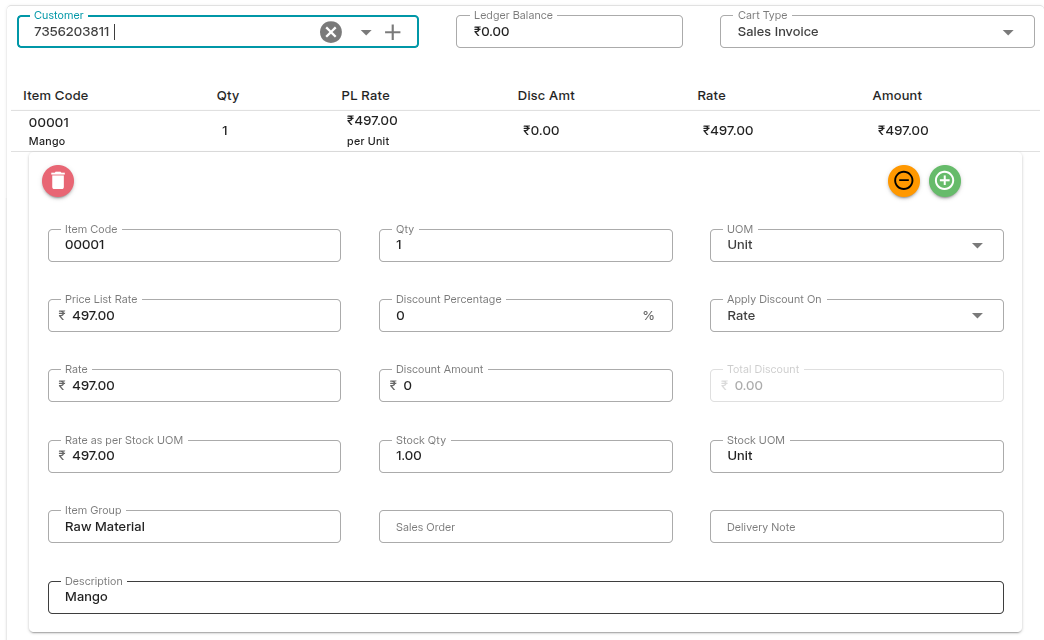
Once items are added to the cart, several useful options become available.
Cart Actions
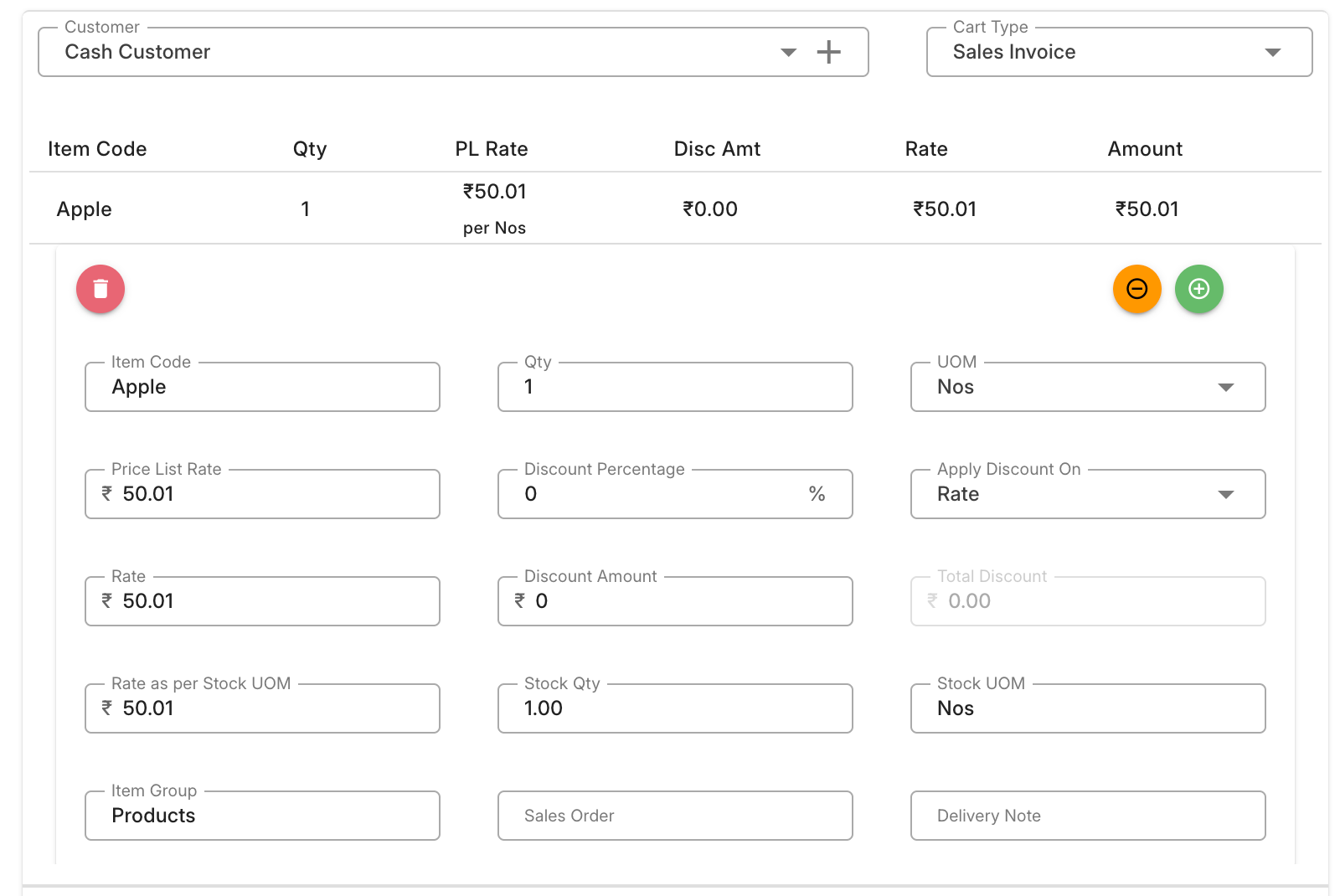
- Click on an item row to expand and view item details.
- Adjust quantities directly.
- Remove item from cart.
- Apply discounts — either as a percentage or a fixed amount.
- Change Units of Measurement if needed.
Holding an Invoice
You can temporarily hold an invoice if a customer needs to pause billing (for example, to pick more items).
- Click Hold Invoice.
- The cart is saved as a “Held Bill”.
- You can continue billing for the next customer without losing progress.
Later, you can retrieve and resume any held bill from the Held Bills menu.
Managing Held Bills, Orders, and Returns
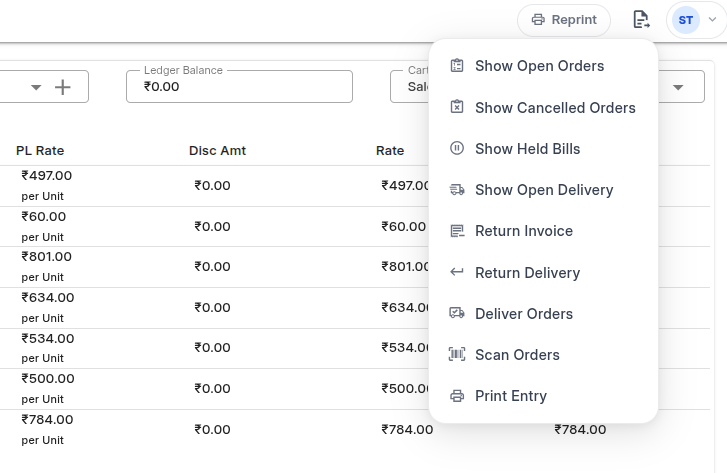
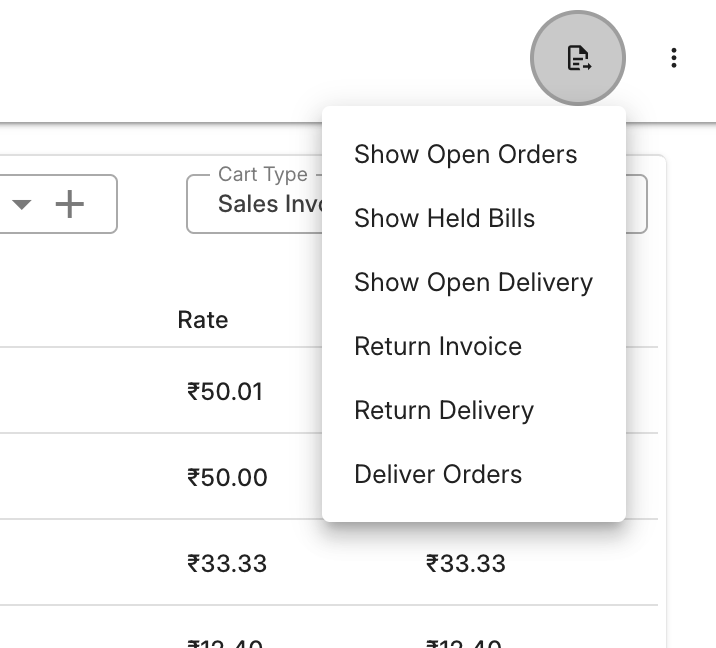
In the top-right corner, click the Actions button to access advanced options:
Held Bills
Selecting Show Held Bills displays a list of invoices that were previously held.
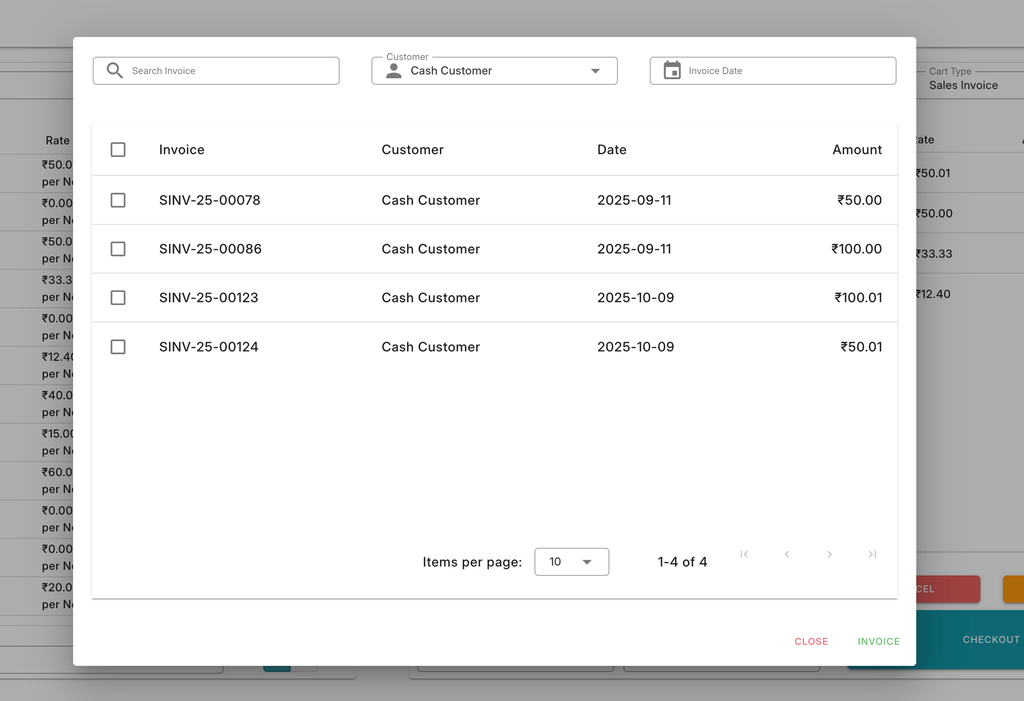
Choose one and click Invoice to restore it to the cart — you can then continue billing or proceed to checkout.
Return Invoices
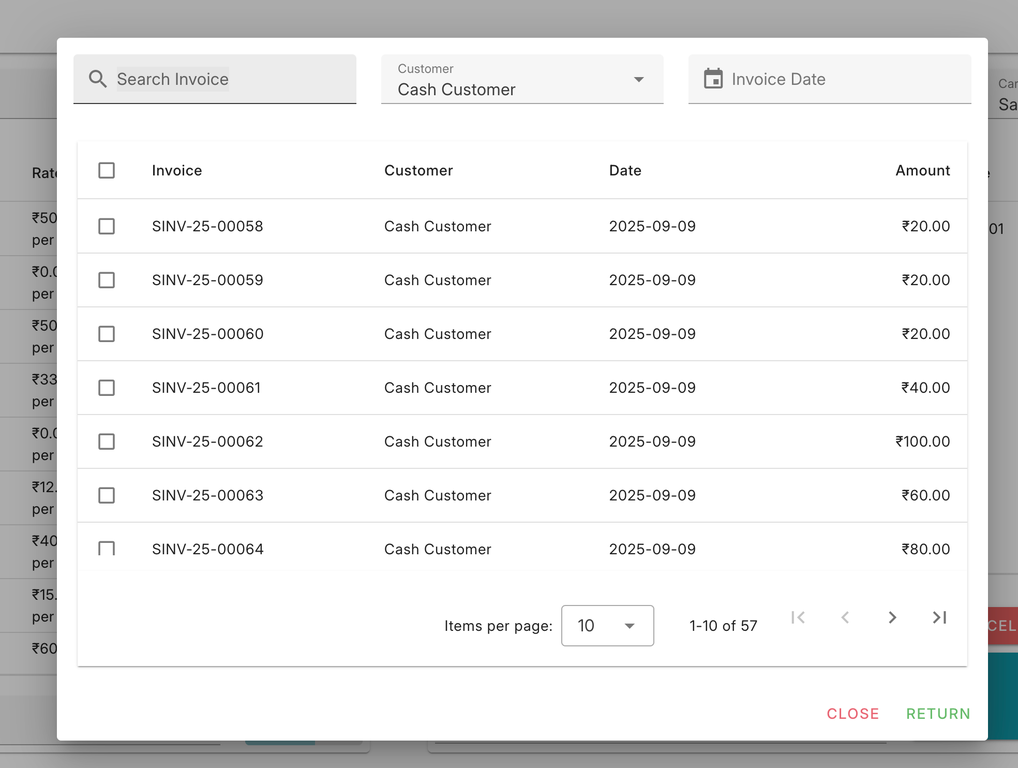
Selecting Return Invoice opens a list of invoices eligible for return.
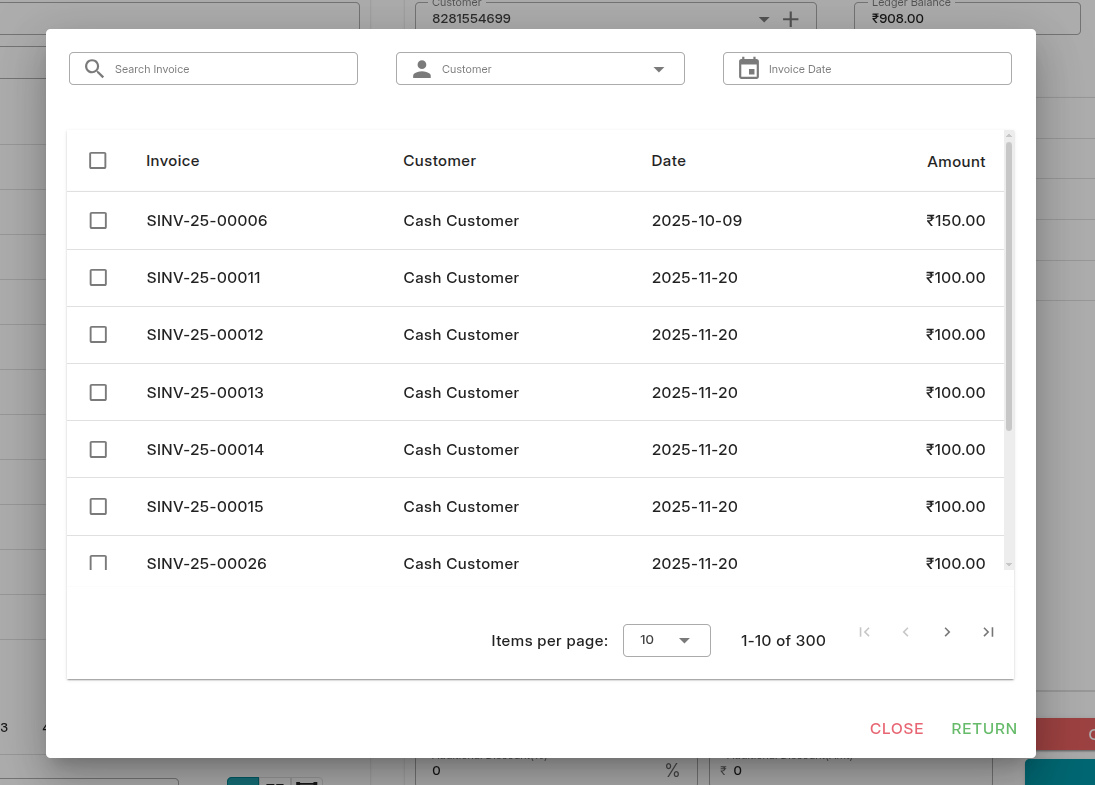
When you select one:
- The system loads the items into the cart with negative quantities.
You can adjust quantities or remove items based on the actual return.
After making the adjustments, proceed to Checkout.
Sales Order
- From the cart type dropdown, select Sales Order.
- Add items to the cart as usual.
- Proceed to Checkout.
Here you can:
- Review all items, discounts, and taxes.
- Add a Delivery Date for the order.
- Submit the payment (if required).
Once submitted, you’ll return to the POS interface.
Viewing Open Orders
- Click the Actions button in the top-right corner.
- Select Show Open Orders.
- A list of pending Sales Orders appears.
- Click Invoice on the desired order — the items will load into the cart automatically.
- You can then continue to Checkout and complete the sale.
Checkout & Payments
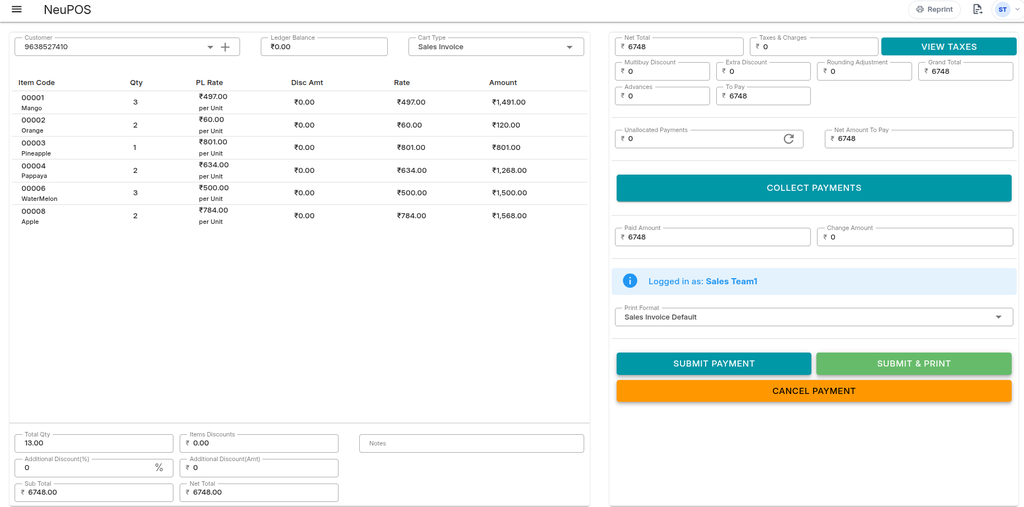
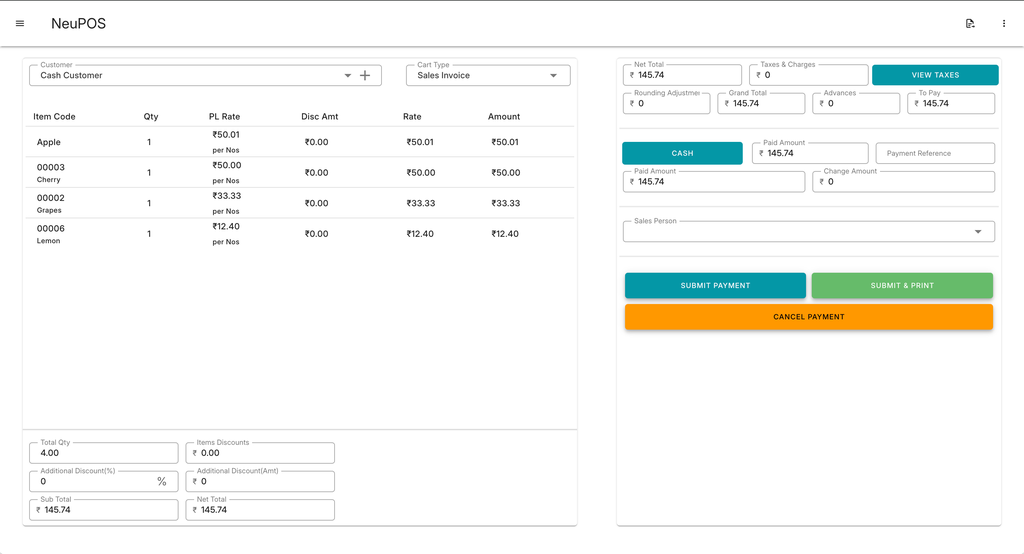
When your cart is ready, move to the Checkout screen.
Here you can:
- Review all items, discounts, and taxes.
- Enter the amount received from the customer.
- The system automatically calculates the balance to return.
- Assign a Salesperson if applicable.
- Click Submit & Print to finalize the sale and print the invoice.
- If needed, use Reprint Last Document to print the last invoice again.
Syncing with the Server
Invoices are first stored locally on the counter and automatically synced to the ERPNext server.
- Automatic Sync happens every hour.
- You can also manually sync anytime by selecting Sync Now from the menu.
- Once synced, invoices appear on the Server with full details.
Closing Shift
At the end of your shift, you should close the counter to complete the day’s records.
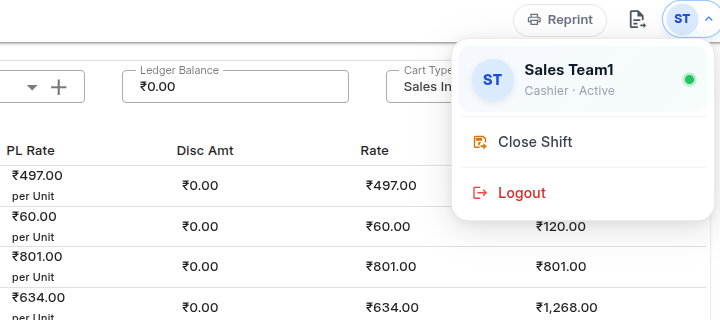
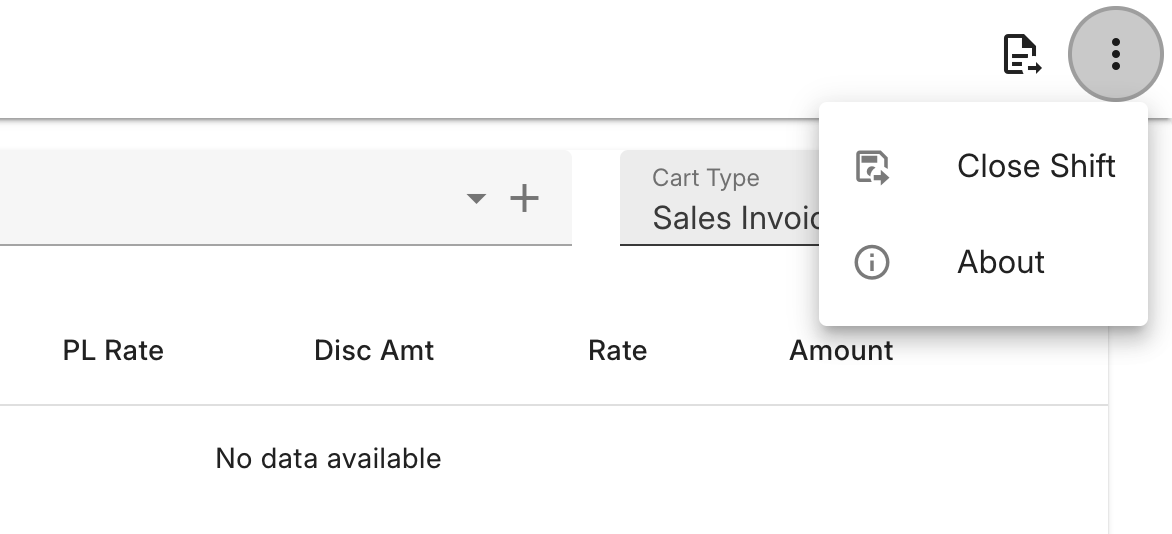
- Open the menu and select Close Shift.
- A summary modal appears showing:
- Opening Balance
- Expected Closing Balance
- Enter the Actual Closing Amount (the cash counted).
- The system calculates any difference automatically.
- Click Submit to officially close the shift.