Supplier Registration - Galfar
This section explains how suppliers can register, access the system, and use the Supplier Portal effectively.
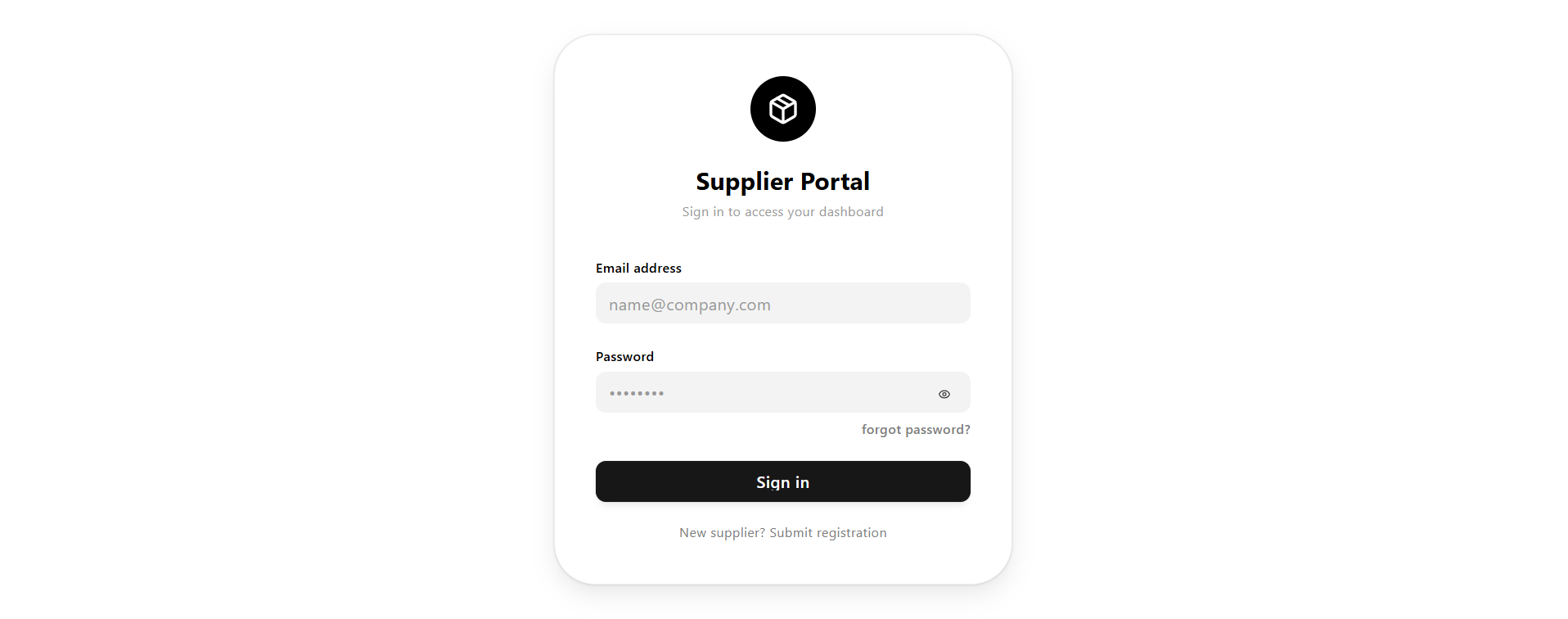
New Supplier Registration
When accessing the login page, new users can register as a supplier.
- Click on "New Supplier? Submit Registration"
- You will be redirected to the Supplier Registration page
Registration Details
The Supplier Registration page allows new suppliers to submit their details for approval.
Suppliers must fill in all required fields accurately to ensure successful registration and approval by the admin.
Fields marked with an asterisk (*) are mandatory.
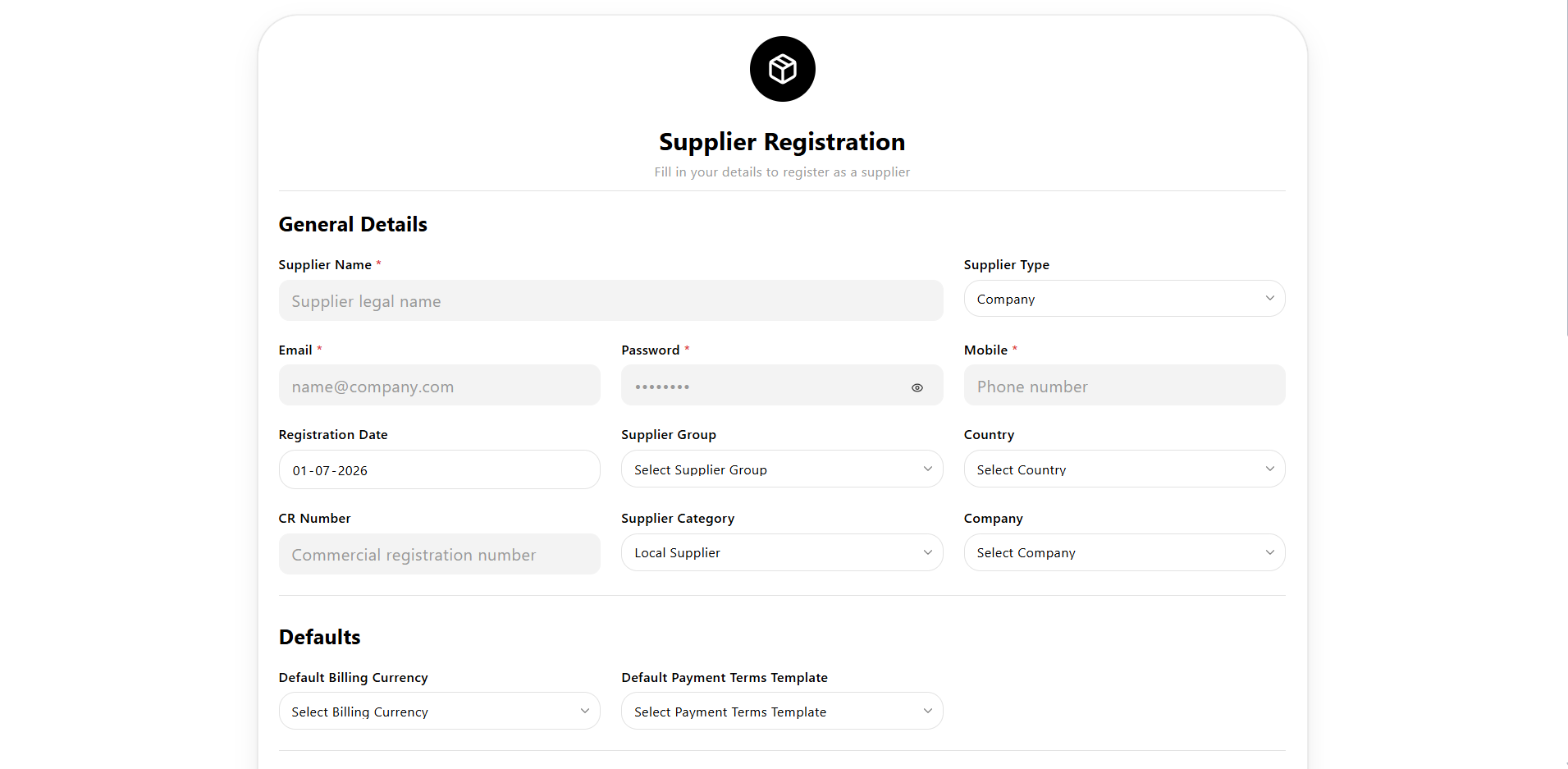
General Details
This section captures the basic information of the supplier.
- Supplier Name * Enter the legal name of the supplier or company.
- Supplier Type Select whether the supplier is an Individual or Company.
- Email * Provide a valid email address. This will be used for login and communication.
- Password * Set a secure password for account access.
- Mobile * Enter the supplier's contact number.
- Registration Date Displays the date of registration (auto-filled or selectable).
- Supplier Group Select the group/category the supplier belongs to (if configured).
- Country Select the supplier's country.
- CR Number Enter the Commercial Registration number of the supplier's business.
- Supplier Category Define the business category of the supplier (e.g., Local Supplier).
- Company Link the supplier to a specific company (if required).
Defaults
This section defines default financial settings for the supplier.
- Default Billing Currency Select the currency used for transactions.
- Default Payment Terms Template Select the default payment terms to be applied to this supplier.
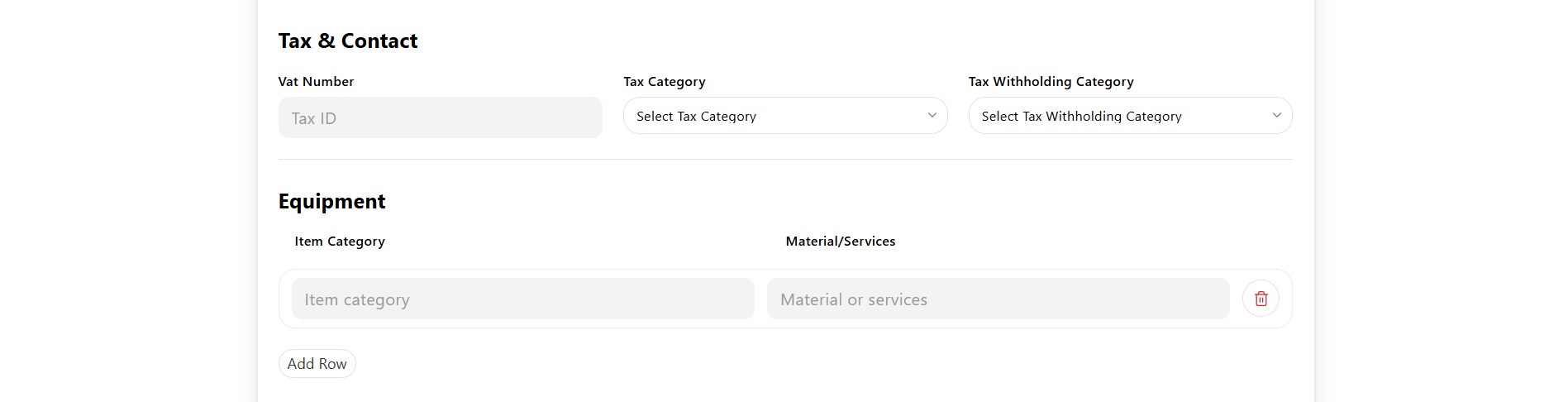
Tax & Contact
This section contains tax-related details.
- Vat Number Enter the supplier's VAT / tax identification number.
- Tax Category Select applicable tax category.
- Tax Withholding Category Define tax deduction rules if applicable.
Equipment
This section allows suppliers to list the categories of items, materials, or services they supply.
| Field | Description |
|---|---|
| Item Category | The category of item supplied. |
| Material/Services | The specific material or service offered under that category. |
- Click Add Row to add a new item category / material entry.
- Use the delete (trash) icon next to a row to remove it.
- Multiple rows can be added to represent different item categories.
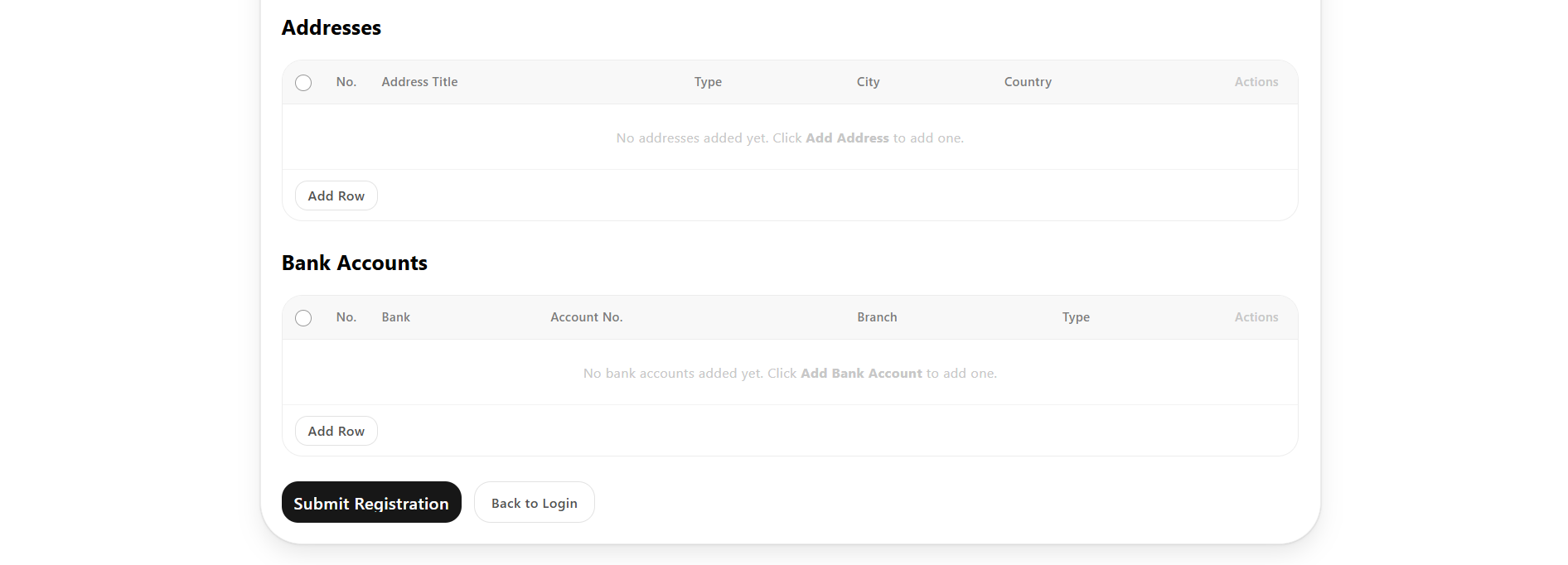
Addresses
- Suppliers can add multiple addresses.
- The table view captures:
- Address Title
- Type
- City
- Country
- Click Add Row to add a new address.
- If none are added, the table displays "No addresses added yet. Click Add Address to add one."
Add Address — Fields
When Add Row is clicked, the following fields are captured:
- Address Title A short label to identify the address (e.g., Head Office, Warehouse).
- Address Type * Select the category of the address. Options: Billing, Shipping, Office, Personal, Plant, Postal, Shop, Subsidiary, Warehouse, Current, Permanent, Other.
- Address Line 1 * The primary address line (street, building, etc.).
- Address Line 2 Additional address details (optional).
- City * The city where the address is located.
- State The state or province.
- Country * Select the country from the list.
- Pincode The postal/ZIP code.
- Phone Contact phone number for this address.
- Email Contact email associated with this address.
- Primary Address Toggle to mark this address as the primary address for the supplier. Only one address can be set as primary.
Bank Accounts
- Suppliers can add multiple bank accounts.
- The table view captures:
- Bank
- Account No.
- Branch
- Type
- Click Add Row to add a new bank account.
- If none are added, the table displays "No bank accounts added yet. Click Add Bank Account to add one."
Add Bank Account — Fields
When Add Row is clicked, the following fields are captured:
- Bank Name * Select the bank from the configured list (e.g., Test Bank dcs).
- Account Number * The supplier's bank account number.
- Branch The specific branch of the bank.
- Account Type * Select the type of account (e.g., test).
- IFSC Code The bank's IFSC code, used for domestic transfers.
- MICR Code The bank's MICR code.
- Default Account Toggle to mark this account as the default account used for payments. Only one account can be set as default.
Submission
- Click Submit Registration after filling all required fields.
- Click Back to Login to return to the login page.
Approval Workflow
- After submission, the registration is sent to the Admin.
- Admin reviews the supplier details, including General Details, Tax & Contact, Equipment, Addresses, and Bank Accounts.
- If approved → Supplier can log in.
- If rejected → Supplier cannot access the system.
Login Process
- Enter registered Email Address
- Enter Password
- Click Login
Only approved suppliers can successfully log in.
Forgot Password

If a supplier forgets their password:
- Click on "Forgot Password" on the login page
- Enter the registered Email Address
- Submit the request
A password reset link will be sent to the provided email address.
The supplier can use this link to reset the password securely.