Create Supplier Quotation
The Create Supplier Quotation module allows suppliers to formally respond to a Request for Quotation (RFQ) by submitting pricing, terms, and delivery details through the Supplier Portal.
It provides a structured interface to enter item rates, discounts, taxes, addresses, and terms — all in one place.
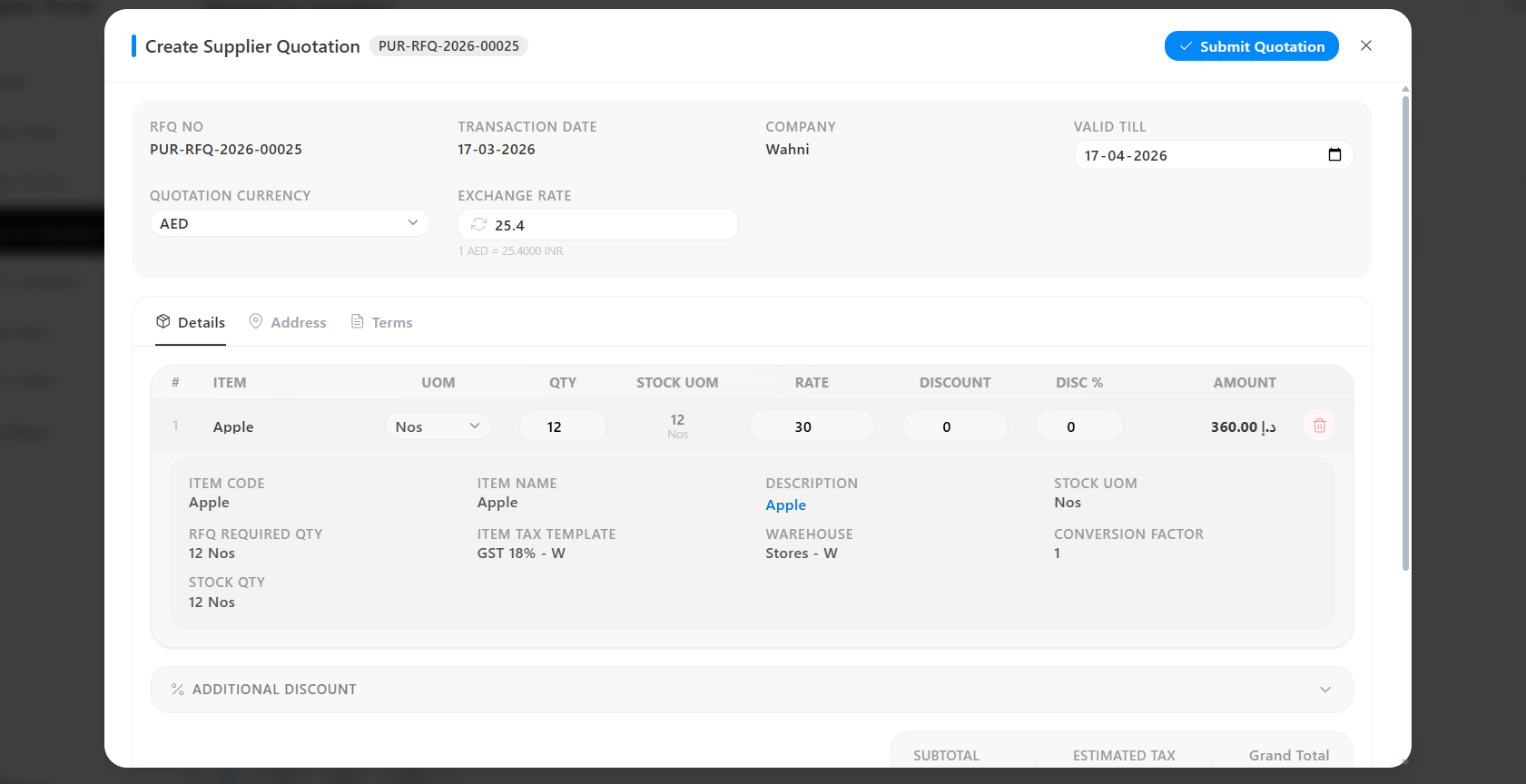
Accessing Create Supplier Quotation
The Create Supplier Quotation page is accessed directly from the RFQ Details modal.
How to Navigate
- Open any RFQ from the Request for Quotation list
- Click Supplier Quotation
- The quotation form opens with pre-filled item details
Quotation Header
Displays key quotation-level information:
- RFQ No → Reference number (read-only)
- Transaction Date → RFQ creation date (read-only)
- Company → Buyer company name (read-only)
- Valid Till → Expiry date of the quotation
By default, the validity is set to one month from the transaction date and can be modified.
Quotation Currency
Suppliers can submit quotations in different currencies:
- Quotation Currency → Select currency (e.g., INR, USD, AED)
- Exchange Rate → Auto-populated based on selected currency
The exchange rate can be manually adjusted if required. A conversion note is displayed (e.g., 1 AED = 25.4000 INR).
Tabs
The quotation form is organized into three tabs:
- Details
- Address
- Terms
Details Tab
The default tab where item pricing, discounts, taxes, and totals are managed.
Item Table
Each item is pre-filled from the RFQ and includes:
- # → Serial number
- Item → Item name (read-only)
- UOM → Editable unit of measurement
- QTY → Editable quantity
- Stock UOM → Read-only
- Rate → Unit price
- Discount → Discount per unit
- Disc % → Discount percentage
- Amount → Auto-calculated value
Items can be removed using the delete option.
Expanded Item Information
Clicking an item reveals additional details:
- Item Code
- Item Name
- Description (editable with rich text and images)
- Stock UOM
- RFQ Required Quantity
- Item Tax Template
- Warehouse
- Conversion Factor
- Stock Quantity
Additional Discount
Allows applying discounts on the entire quotation:
- Discount Percentage
- Discount Amount
Can be applied on:
- Grand Total
- Net Total
Purchase Taxes and Charges Template
Displays tax breakdown:
- Template (e.g., GST 18%)
- Description (CGST, SGST, etc.)
- Account Head
- Rate %
- Tax Amount
- Total
Summary Totals
Displayed at the bottom:
- Subtotal → Before tax and discounts
- Estimated Tax → Total tax value
- Grand Total → Final payable amount
Address Tab
Allows selection of address details:
- Supplier Address
- Billing Address
- Shipping Address
All addresses are selected from pre-configured records.
Terms Tab
Defines payment and contractual terms:
- Payment Terms
- Payment Terms Template
- Terms and Conditions (HTML supported)
- Notes / Instructions
Action Button
Located at the top-right:
- Submit Quotation
How to Submit
- Enter item rates and discounts
- Verify currency and exchange rate
- Set validity date
- Click Submit Quotation
The quotation is submitted to the buyer for approval.