Payable Report
The Payable Report module allows suppliers to view a complete snapshot of all outstanding and settled payable transactions as of a specific date through the Supplier Portal.
It provides a structured report of purchase invoices, invoiced amounts, payments received, debit notes, outstanding balances, and aging details — all in one place.
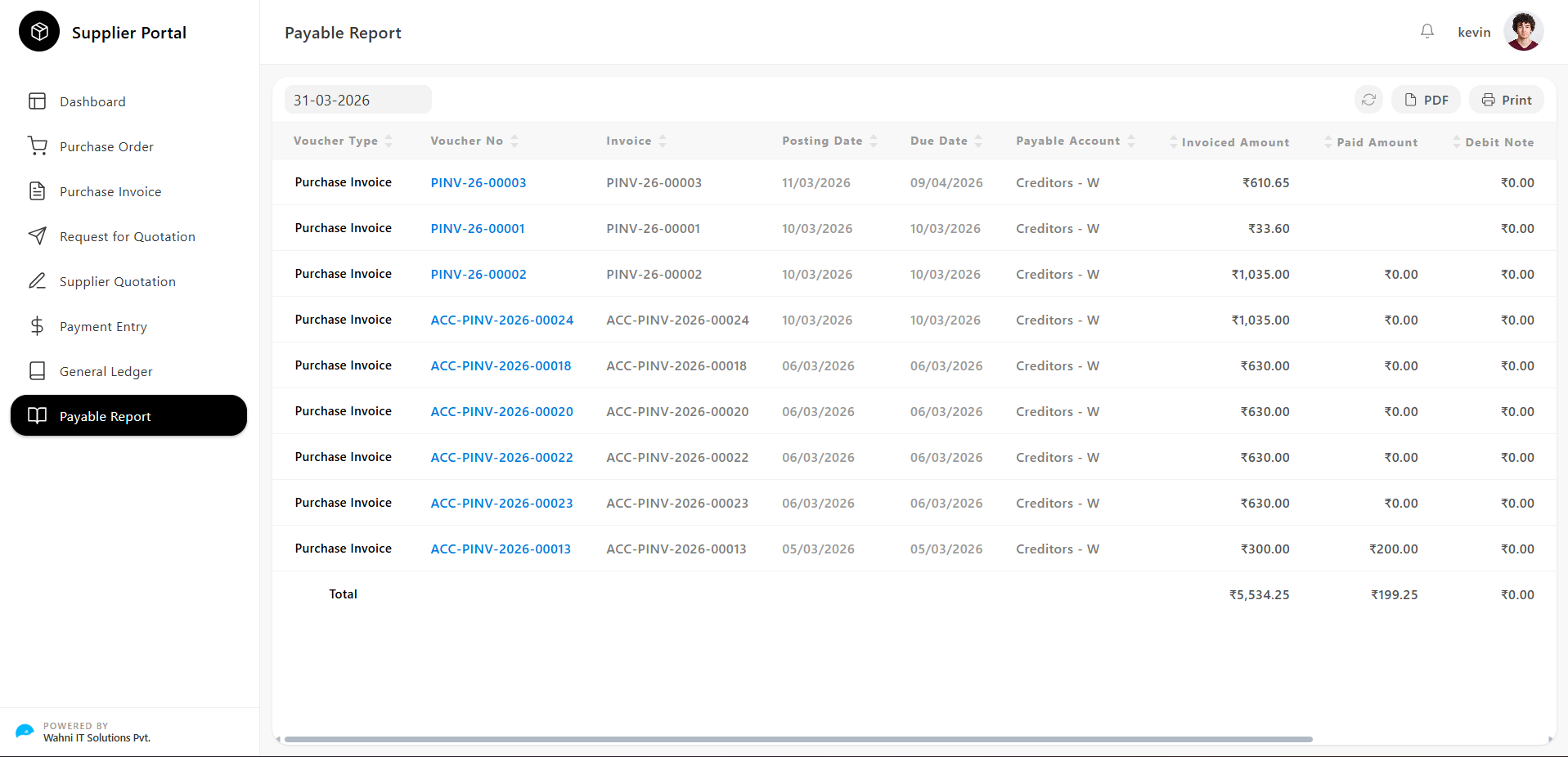
Payable Report Overview
The Payable Report page gives suppliers a date-based view of all payable entries with full voucher traceability and downloadable report options.
Date Filter
Suppliers can control the reporting period using:
- As Of Date → Select the date up to which payable entries are shown
The report updates automatically based on the selected date.
Action Buttons
Located at the top-right of the page:
- PDF → Download the report as a PDF
- Print → Print the report directly
Payable Report Table
All entries are displayed in a table format with the following columns:
- Voucher Type
Type of document:
- Purchase Invoice
- Voucher No Unique reference number → Click to view invoice details
- Invoice Invoice reference number (same as Voucher No)
- Posting Date Date when the invoice was created
- Due Date Payment due date
- Payable Account Creditor ledger account
- Invoiced Amount Total invoice value
- Paid Amount Amount already paid
- Debit Note Debit note adjustments
- Outstanding Amount Remaining unpaid balance
- Age Number of days since invoice date
Understanding Payable Entries
Fully Outstanding Invoice
When no payment is made:
- Invoiced Amount → Full value
- Paid Amount → 0.00
- Debit Note → 0.00
- Outstanding Amount → Full amount
- Age → Days since posting
Partially Paid Invoice
When partial payment is made:
- Invoiced Amount → Full value
- Paid Amount → Partial amount
- Outstanding Amount → Remaining balance
- Age → Days since posting
Fully Paid Invoice
When fully settled:
- Invoiced Amount → Full value
- Paid Amount → Equal to invoice
- Outstanding Amount → 0.00
These may not appear depending on filter settings.
Voucher Navigation
Suppliers can access full invoice details:
- Click Voucher No → Opens Purchase Invoice
This allows direct traceability from report to source document.
Report Totals
Displayed at the bottom of the table:
Total Row
- Total Invoiced Amount → Sum of all invoices
- Total Paid Amount → Total payments received
- Total Debit Note → Total debit adjustments
- Total Outstanding Amount → Net payable balance