Supplier Registration - WK
This section explains how suppliers can register, access the system, and use the Supplier Portal effectively.
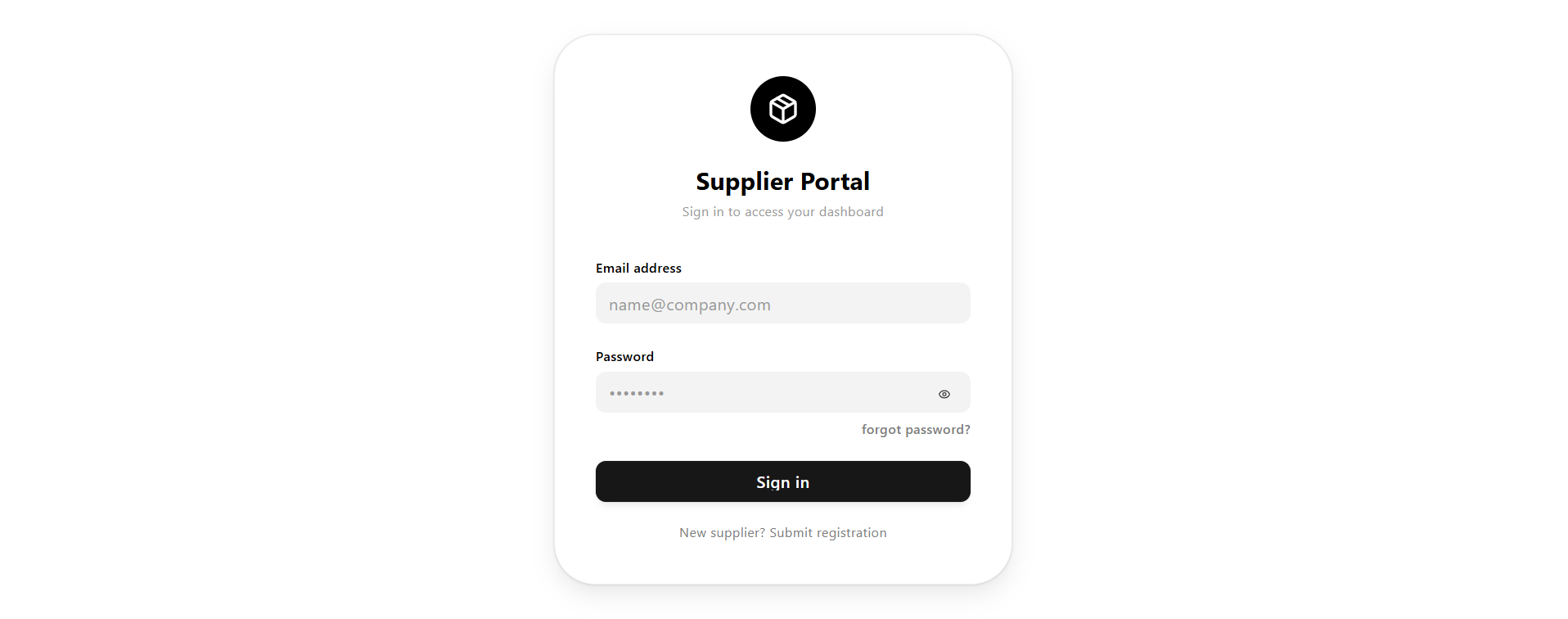
New Supplier Registration
When accessing the login page, new users can register as a supplier.
- Click on "New Supplier? Submit Registration"
- You will be redirected to the Supplier Registration page
Registration Details
The Supplier Registration page allows new suppliers to submit their details for approval.
Suppliers must fill in all required fields accurately to ensure successful registration and approval by the admin.
Fields marked with an asterisk (*) are mandatory.
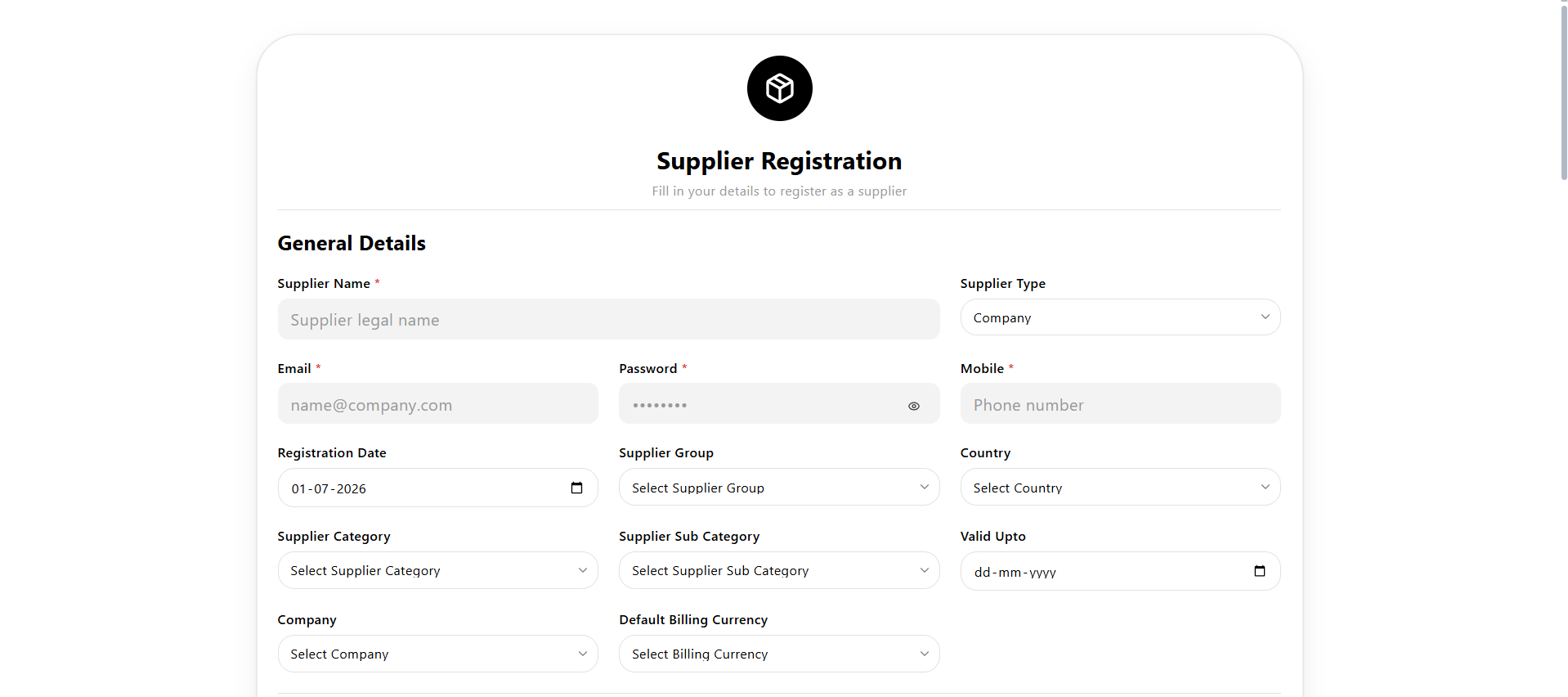
General Details
This section captures the basic information of the supplier.
- Supplier Name * Enter the legal name of the supplier or company.
- Supplier Type Select whether the supplier is an Individual or Company.
- Email * Provide a valid email address. This will be used for login and communication.
- Password * Set a secure password for account access.
- Mobile * Enter the supplier's contact number.
- Registration Date Displays the date of registration (auto-filled or selectable).
- Supplier Group Select the group/category the supplier belongs to (if configured).
- Country Select the supplier's country.
- Supplier Category Define the business category of the supplier.
- Supplier Sub Category Specify a more detailed classification under the main category.
- Valid Upto Set the validity date for the supplier registration (if applicable).
- Company Link the supplier to a specific company (if required).
- Default Billing Currency Select the currency used for transactions.
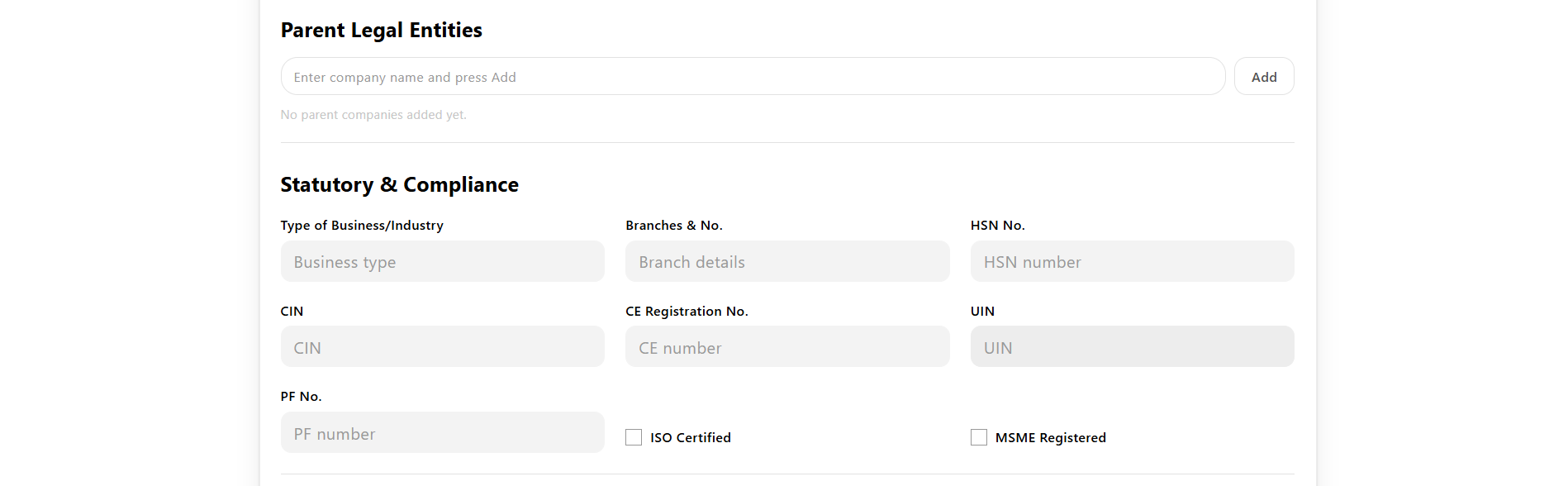
Parent Legal Entities
This section allows a supplier to declare any parent or holding companies associated with them.
- Enter the company name in the input field.
- Click Add (or press Enter) to add the entry to the list below.
- Added entries appear in the list below the input, each with an option to remove it.
- If none apply, the section displays "No parent companies added yet."
Statutory & Compliance
This section captures legal and compliance-related information.
- Type of Business / Industry Define the nature of the supplier's business.
- Branches & No. Enter branch details and number of branches.
- HSN No. Provide the HSN (Harmonized System of Nomenclature) code.
- CIN Corporate Identification Number (for registered companies).
- CE Registration No. Applicable compliance registration number.
- UIN Unique Identification Number (if applicable).
- PF No. Provident Fund number (if applicable).
- ISO Certified Check if the supplier is ISO certified.
- MSME Registered Check if the supplier is registered under MSME.
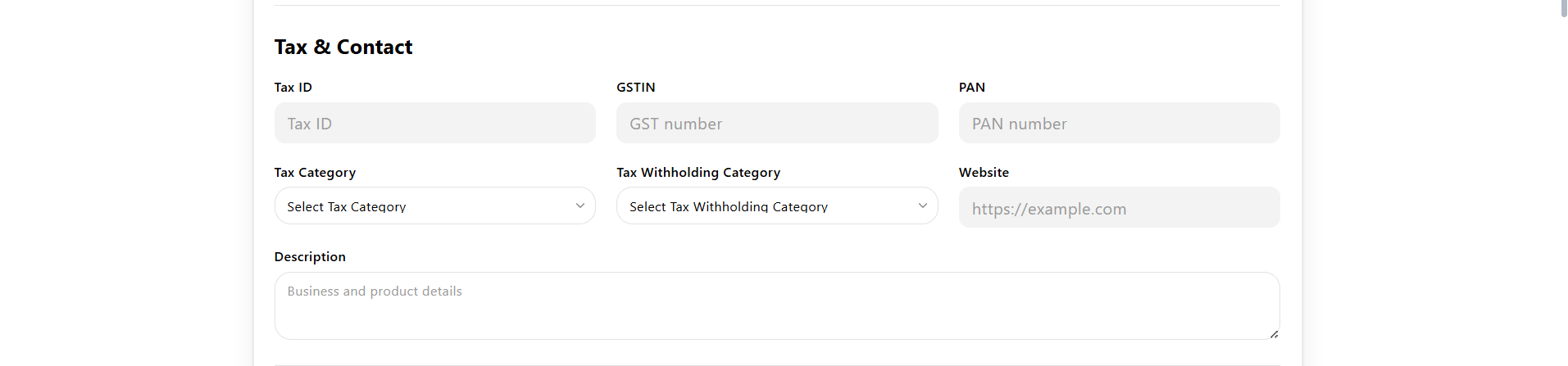
Tax & Contact
This section contains tax-related and additional contact details.
- Tax ID Enter the supplier's tax identification number.
- GSTIN Provide GST number for tax compliance.
- PAN Enter PAN details.
- Tax Category Select applicable tax category.
- Tax Withholding Category Define tax deduction rules if applicable.
- Website Enter the supplier's official website URL.
- Description Provide a brief description of the supplier's business and products.
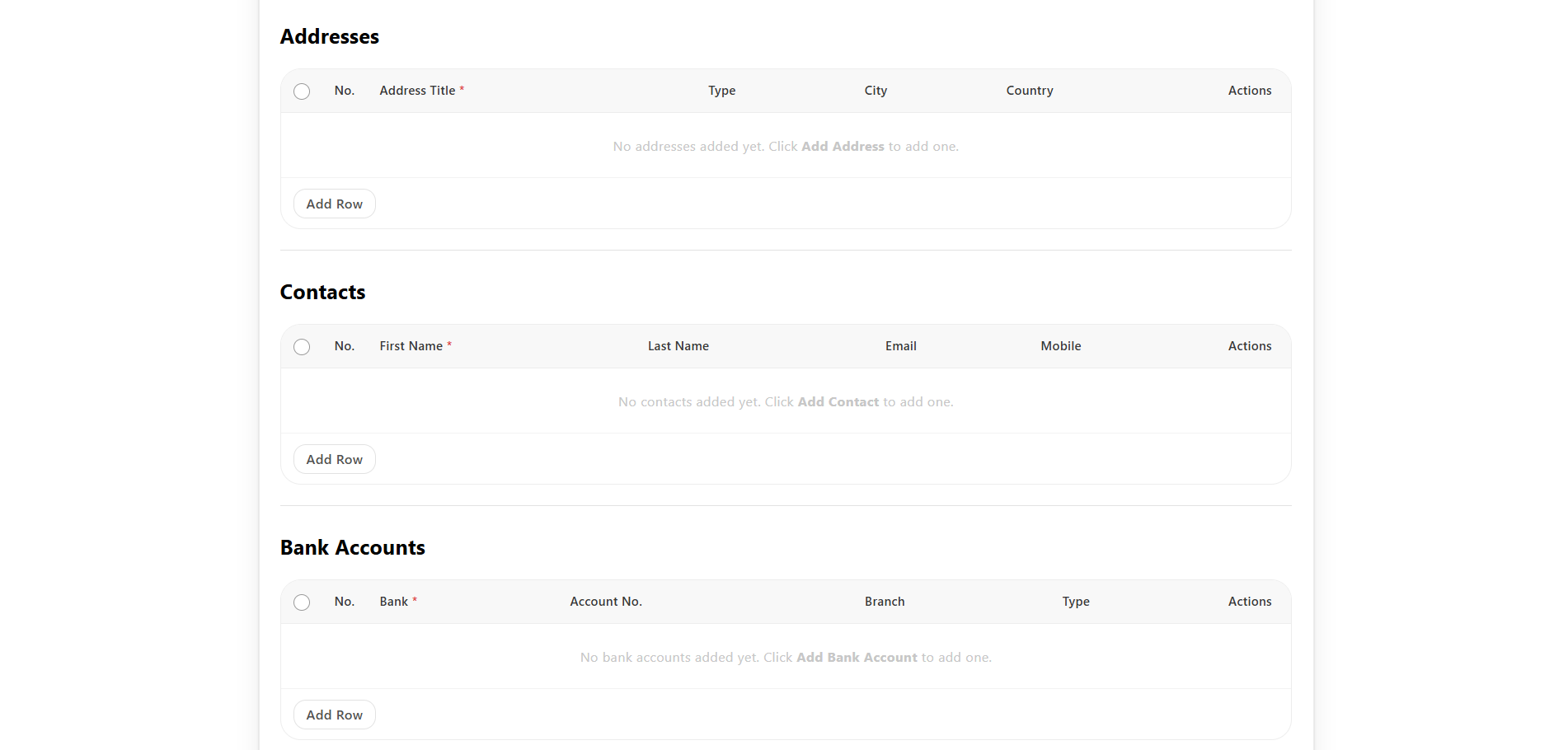
Addresses
- Suppliers can add multiple addresses, such as Billing and Shipping.
- The table view captures:
- Address Title * — a short label for the address (e.g., Head Office, Warehouse)
- Type — the category of the address (e.g., Billing, Shipping)
- City
- Country
- Additional details such as street address, state, and postal code are captured when adding/editing a row.
- One address can be marked as the Primary Address for default use.
- Click Add Row to add a new address.
- If none are added, the table displays "No addresses added yet. Click Add Address to add one."
Contacts
- Suppliers can add multiple contacts.
- The table view captures:
- First Name *
- Last Name
- Mobile
- One contact can be marked as the Primary Contact for default use.
- One contact can be marked as the Person in case of escalation for handling escalated issues.
- Click Add Row to add a new contact.
- If none are added, the table displays "No contacts added yet. Click Add Contact to add one."
Bank Accounts
- Suppliers can add multiple bank accounts.
- The table view captures:
- Bank *
- Account No.
- Branch
- Type
- When adding/editing an account, additional details are also captured: Bank Address, Account Type, Email, Mobile Number, IFSC Code, SWIFT Code, IBAN Code, and MICR Code.
- One account can be marked as the Default Account for payments.
- Click Add Row to add a new bank account.
- If none are added, the table displays "No bank accounts added yet. Click Add Bank Account to add one."
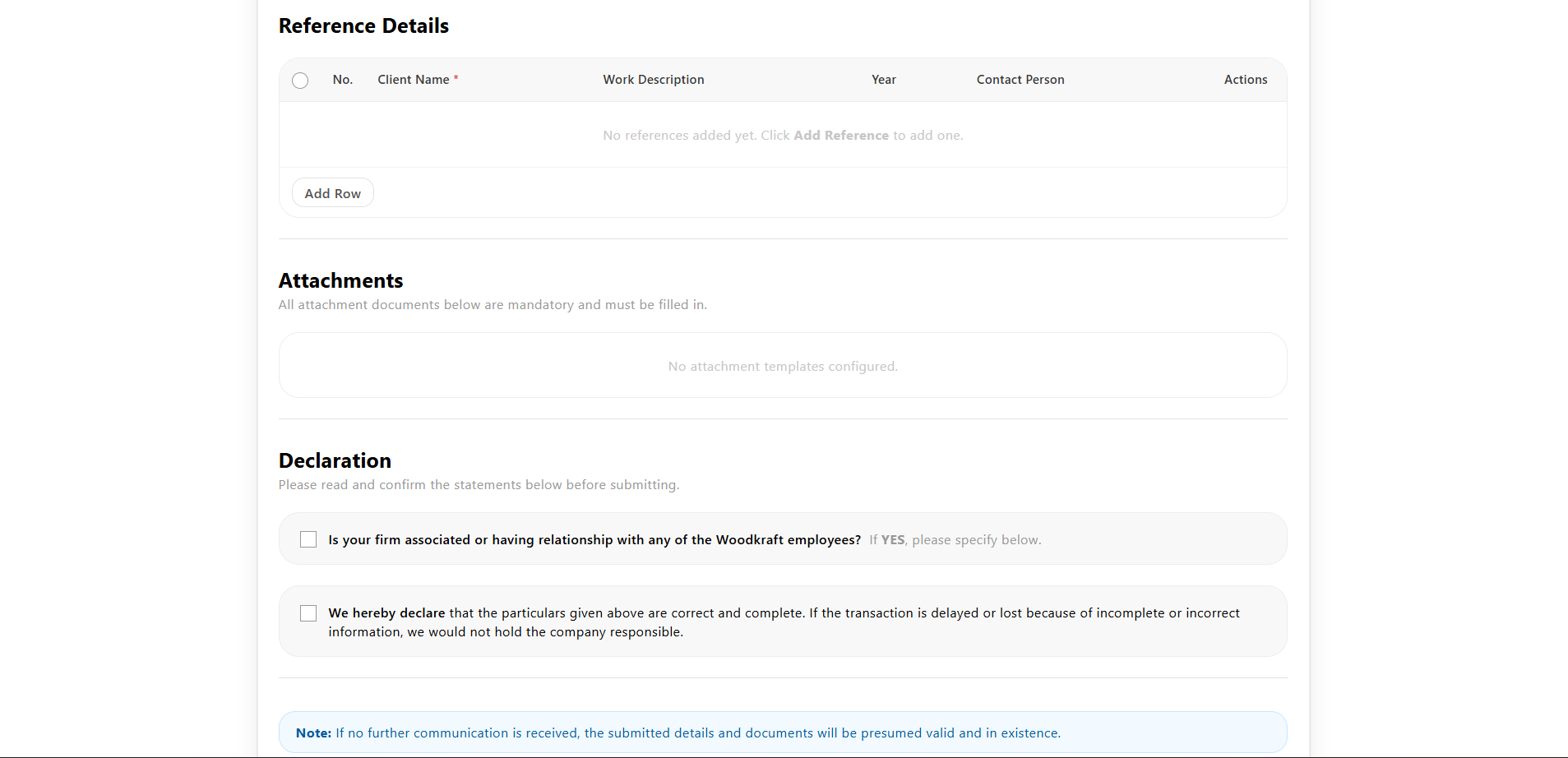
Reference Details
- Suppliers can add multiple references.
- Each entry captures:
- Client Name *
- Work Description
- Year
- Contact Person
- Designation
- Contact Number
- Click Add Row to add a new reference.
- If none are added, the table displays "No references added yet. Click Add Reference to add one."
Attachments
All attachment documents are mandatory and must be filled in before submission.
- Select an Attachment Template (e.g., "entity turnover") — this determines which documents are required.
- Based on the selected template, the required Document Names are automatically listed as rows.
- For each row, upload the file using Attach and provide the Valid Upto date.
Declaration
Please read and confirm the statements below before submitting.
- ☐ Employee Association — Is your firm associated or having a relationship with any of the Woodkraft employees? If YES, please specify below.
- ☐ Accuracy Declaration — "We hereby declare that the particulars given above are correct and complete. If the transaction is delayed or lost because of incomplete or incorrect information, we would not hold the company responsible."
Note: If no further communication is received, the submitted details and documents will be presumed valid and in existence.
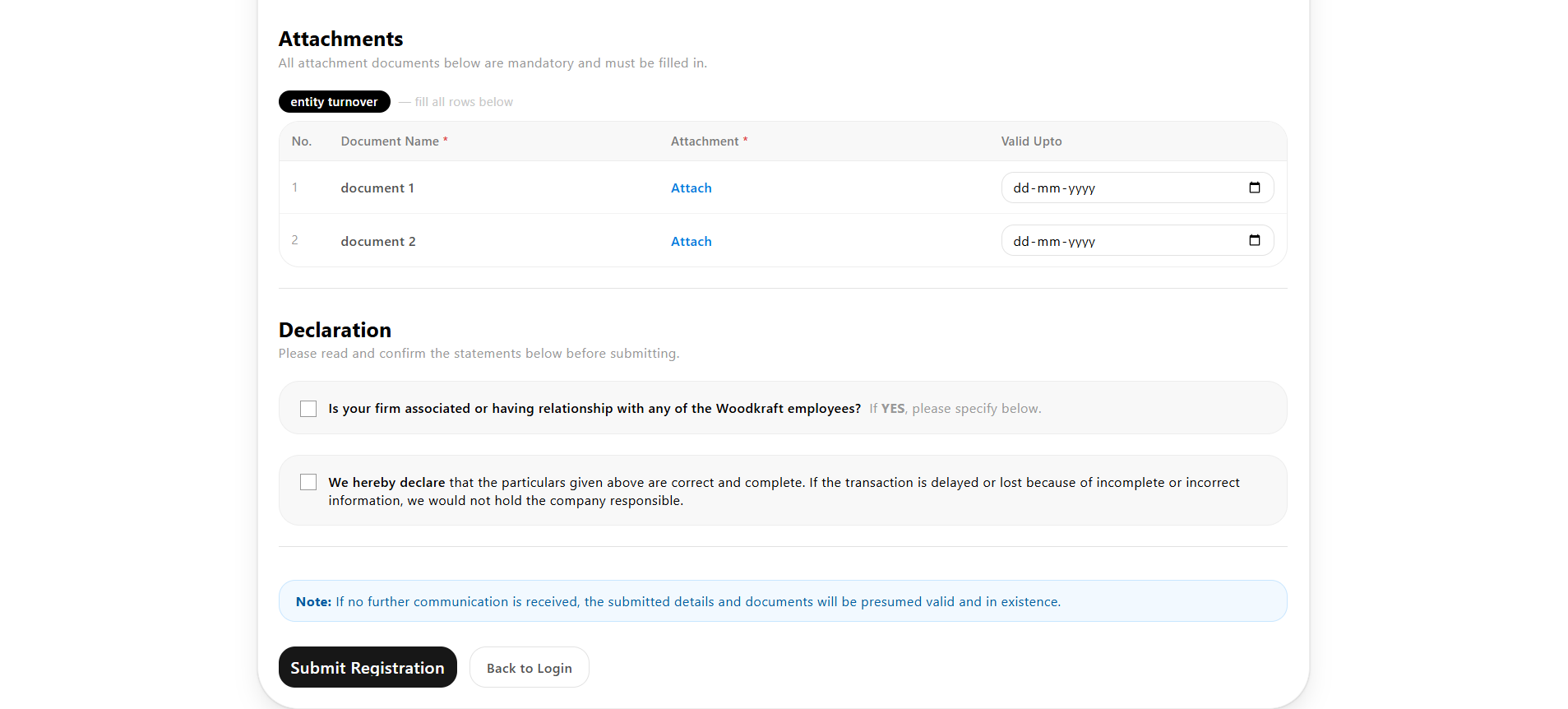
Submission
- Click Submit Registration after filling all required fields, tables, attachments, and confirming the declaration checkboxes.
- Click Back to Login to return to the login page.
Approval Workflow
- After submission, the registration is sent to the Admin.
- Admin reviews the supplier details, including Parent Legal Entities, Addresses, Contacts, Bank Accounts, References, and Attachments.
- If approved → Supplier can log in.
- If rejected → Supplier cannot access the system.
Login Process
- Enter registered Email Address
- Enter Password
- Click Login
Only approved suppliers can successfully log in.
Forgot Password

If a supplier forgets their password:
- Click on "Forgot Password" on the login page
- Enter the registered Email Address
- Submit the request
A password reset link will be sent to the provided email address.
The supplier can use this link to reset the password securely.